328 Business Mobile Banking Demo - Administrator
Activate Debit Card
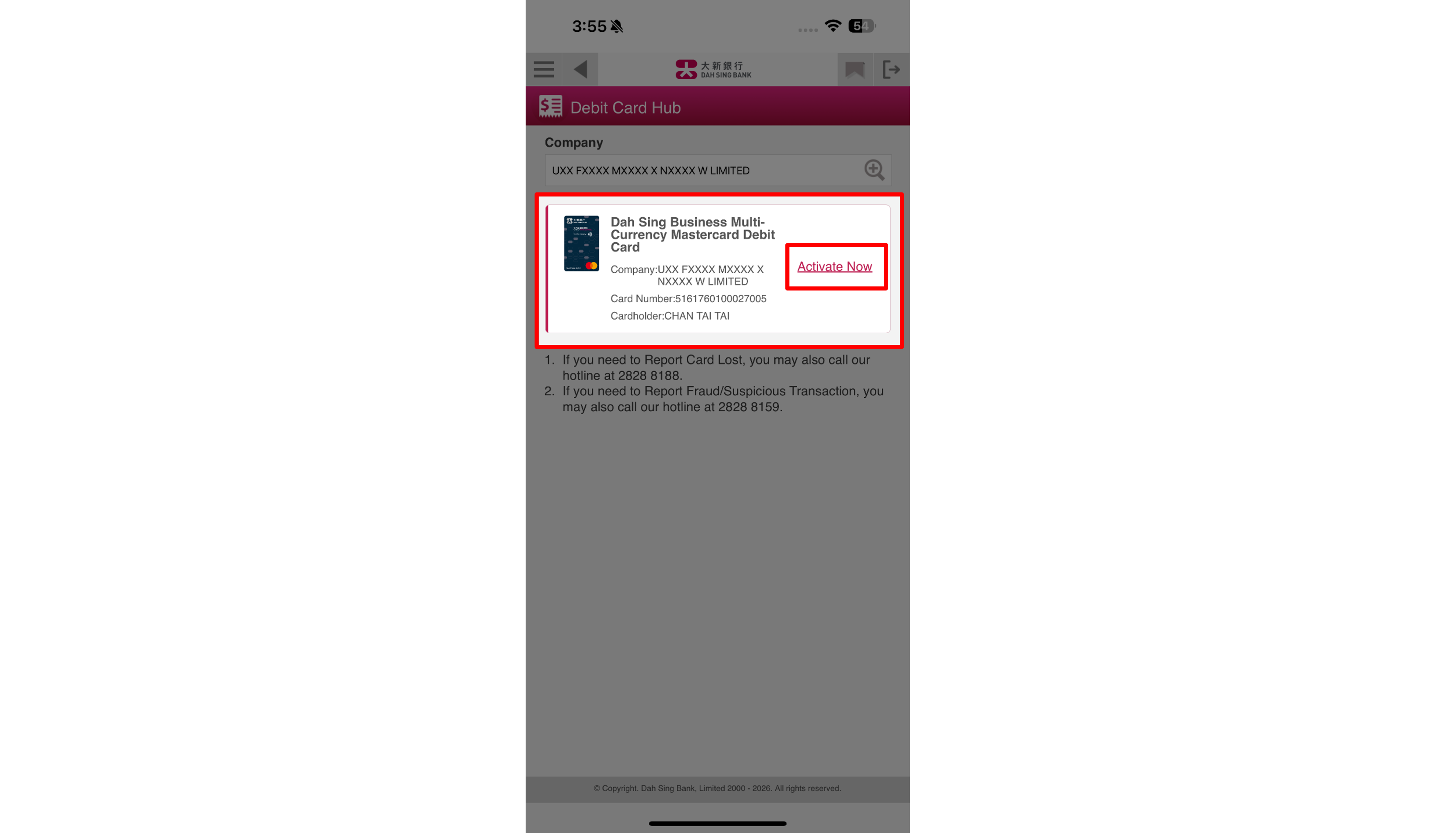
Once you have received the physical Dah Sing Business Multi-Currency Mastercard Debit Card, you may log in to 328 Business Mobile Banking to activate your debit card within the "Debit Card Hub" of "Business Debit Card".
Activate Debit Card
Once you have received the physical Dah Sing Business Multi-Currency Mastercard Debit Card, you may log in to 328 Business Mobile Banking to activate your debit card within the "Debit Card Hub" of "Business Debit Card".
Activate Debit Card
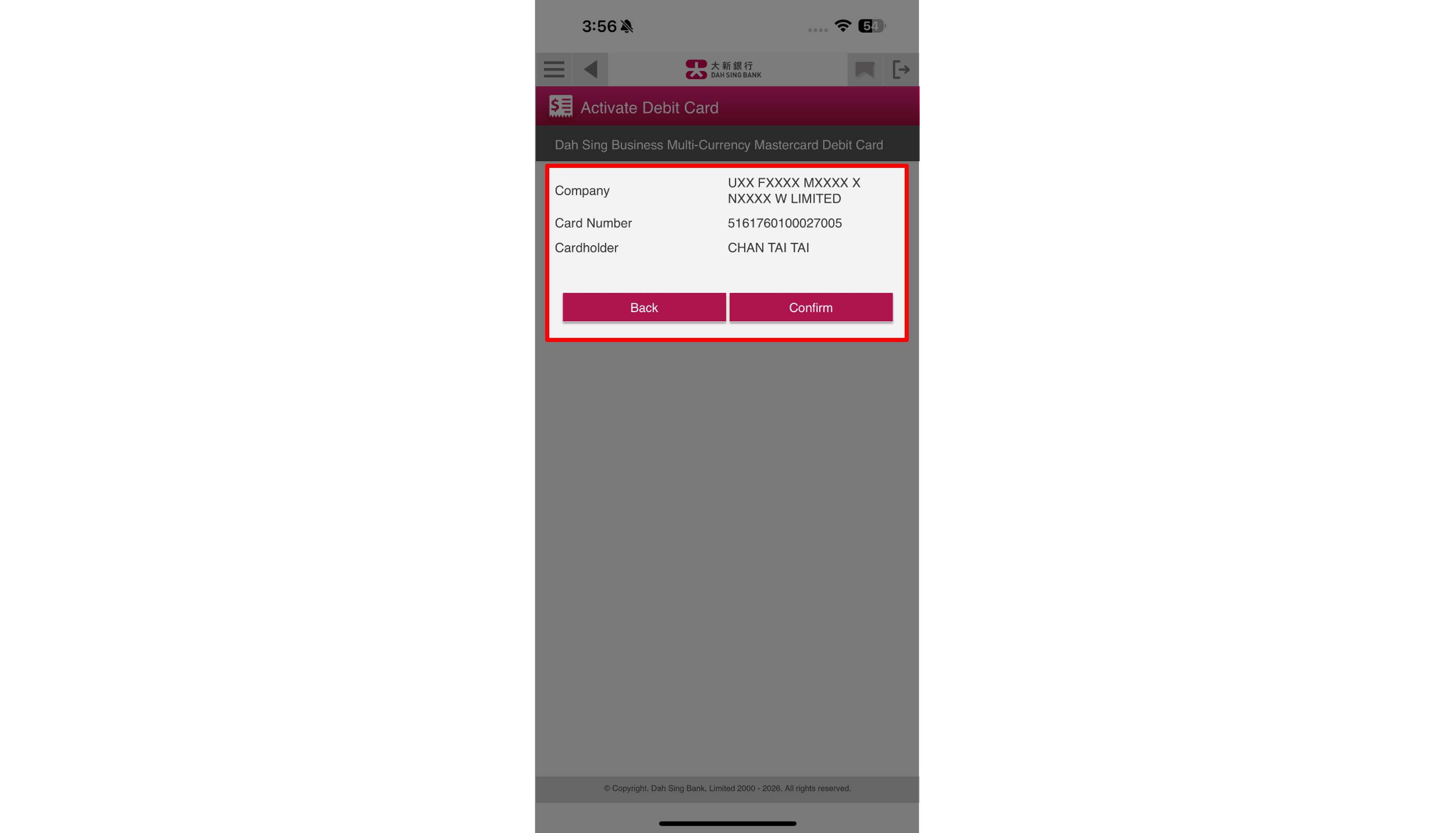
After confirming that the debit card details are correct, click "Confirm" to submit the debit card activation request.
Activate Debit Card
After confirming that the debit card details are correct, click "Confirm" to submit the debit card activation request.
Activate Debit Card
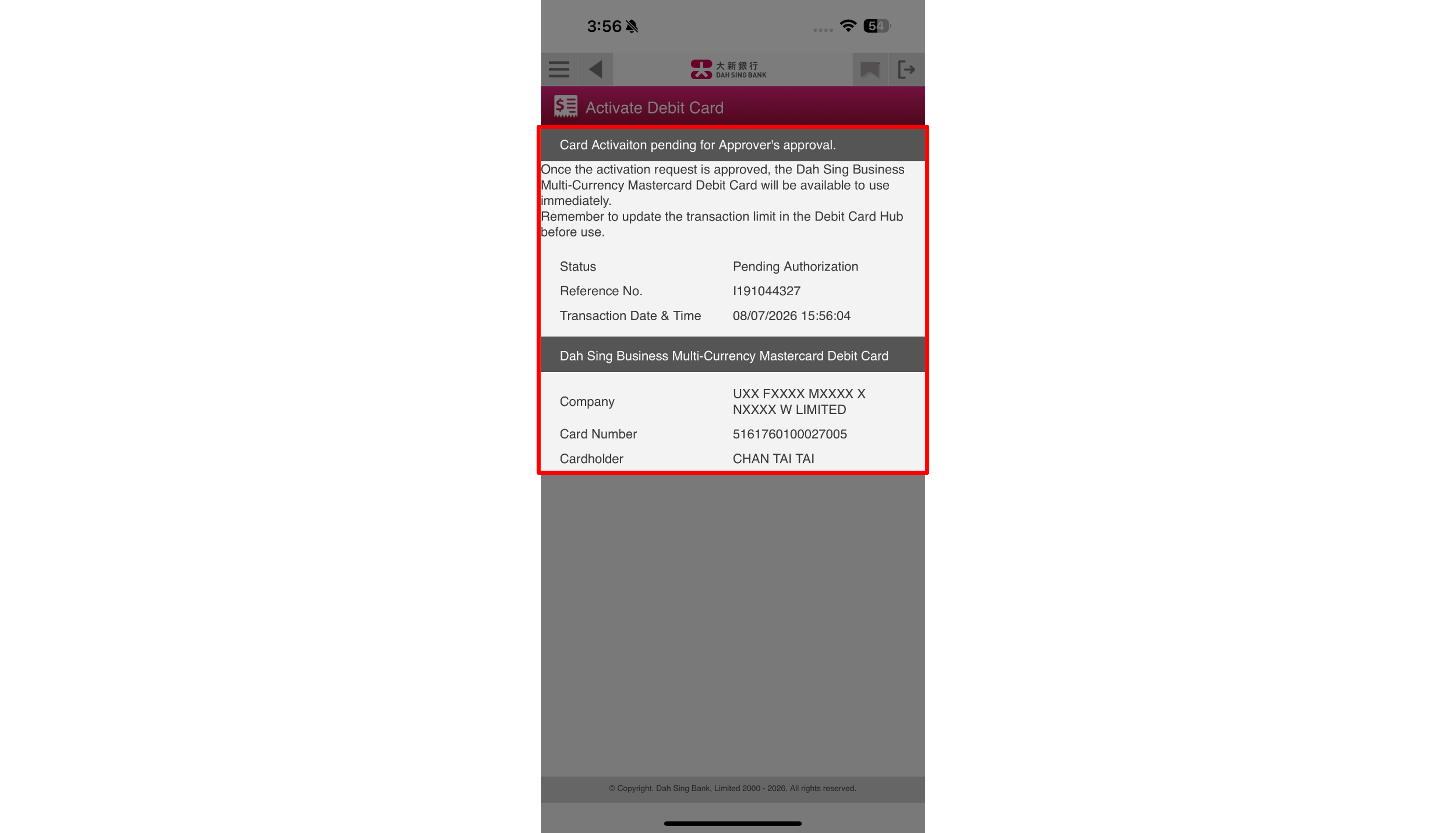
Due to security reason, after successfully submitting the debit card activation request, the instruction must be approved by an Approver in order to complete the activation process.
Activate Debit Card
Due to security reason, after successfully submitting the debit card activation request, the instruction must be approved by an Approver in order to complete the activation process.
Activate Debit Card
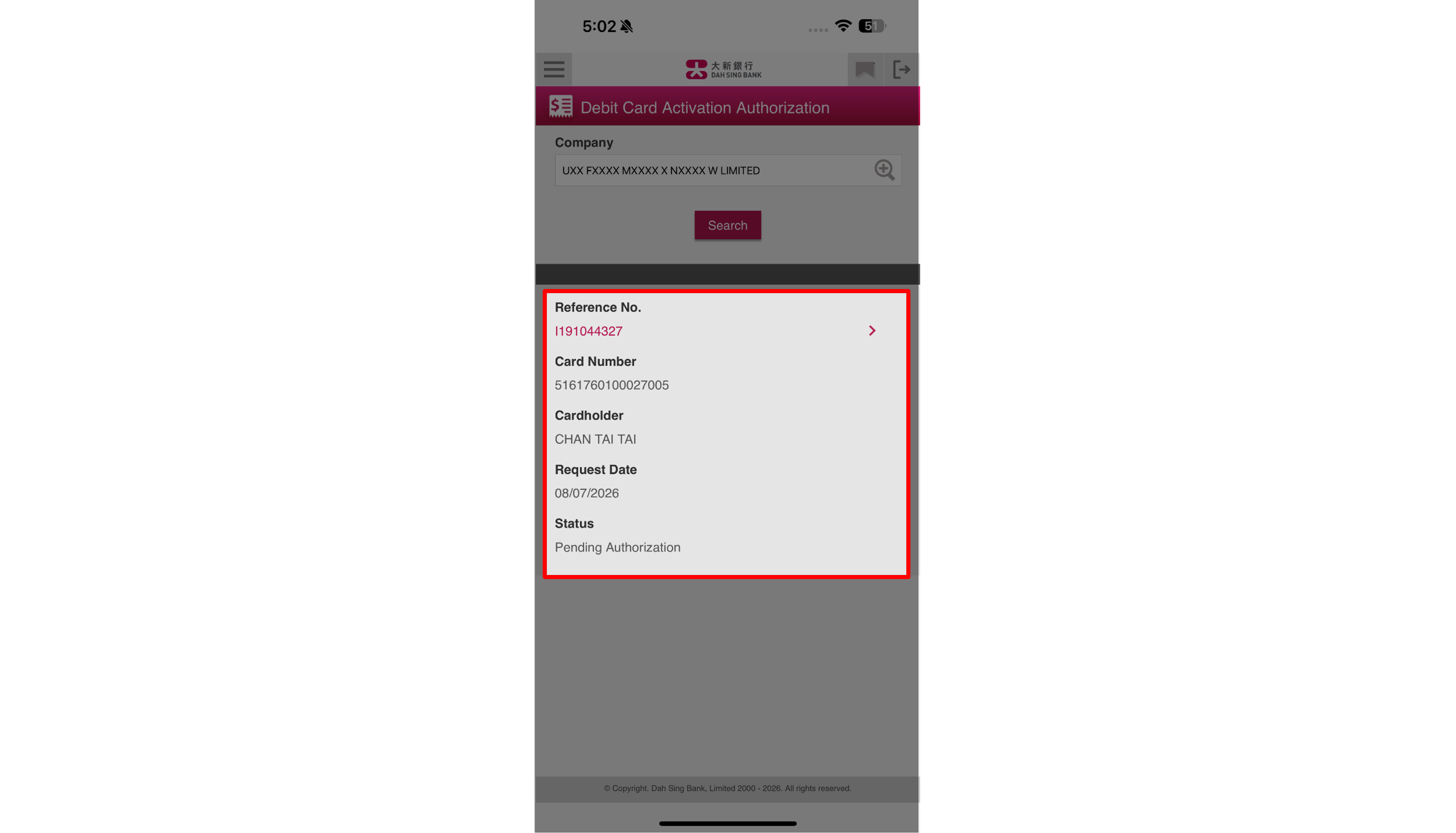
(Approver) Log in to 328 Business Mobile Banking as Approver, then navigate to "Debit Card Activation Authorization" under the homepage and choose the corresponding debit card activation request.
Activate Debit Card
(Approver) Log in to 328 Business Mobile Banking as Approver, then navigate to "Debit Card Activation Authorization" under the homepage and choose the corresponding debit card activation request.
Activate Debit Card
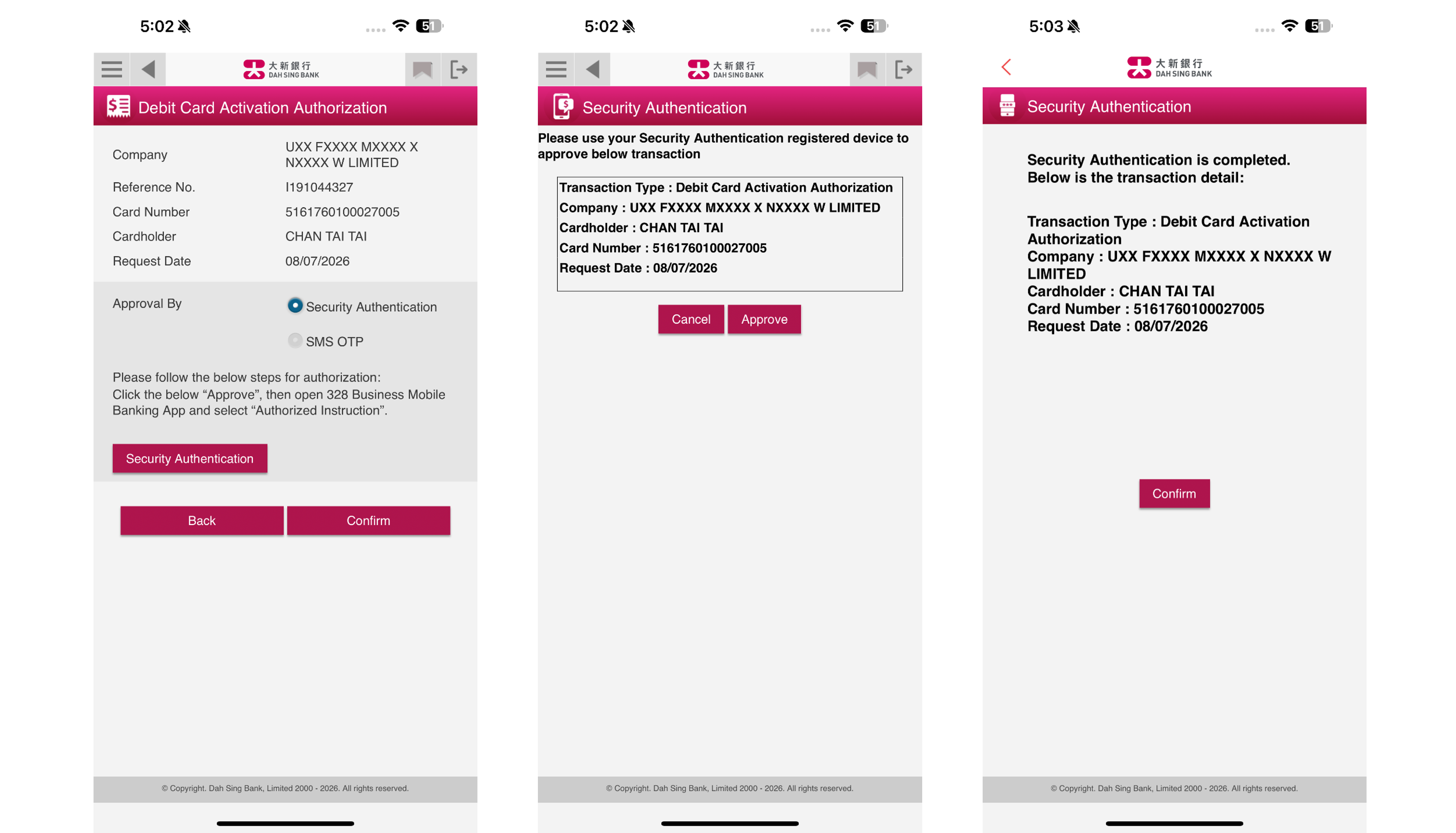
(Approver) After verifying the details, follow the on-screen instruction to perform Security Authentication, then click "Confirm" to complete the debit card activation process.
Activate Debit Card
(Approver) After verifying the details, follow the on-screen instruction to perform Security Authentication, then click "Confirm" to complete the debit card activation process.
Activate Debit Card
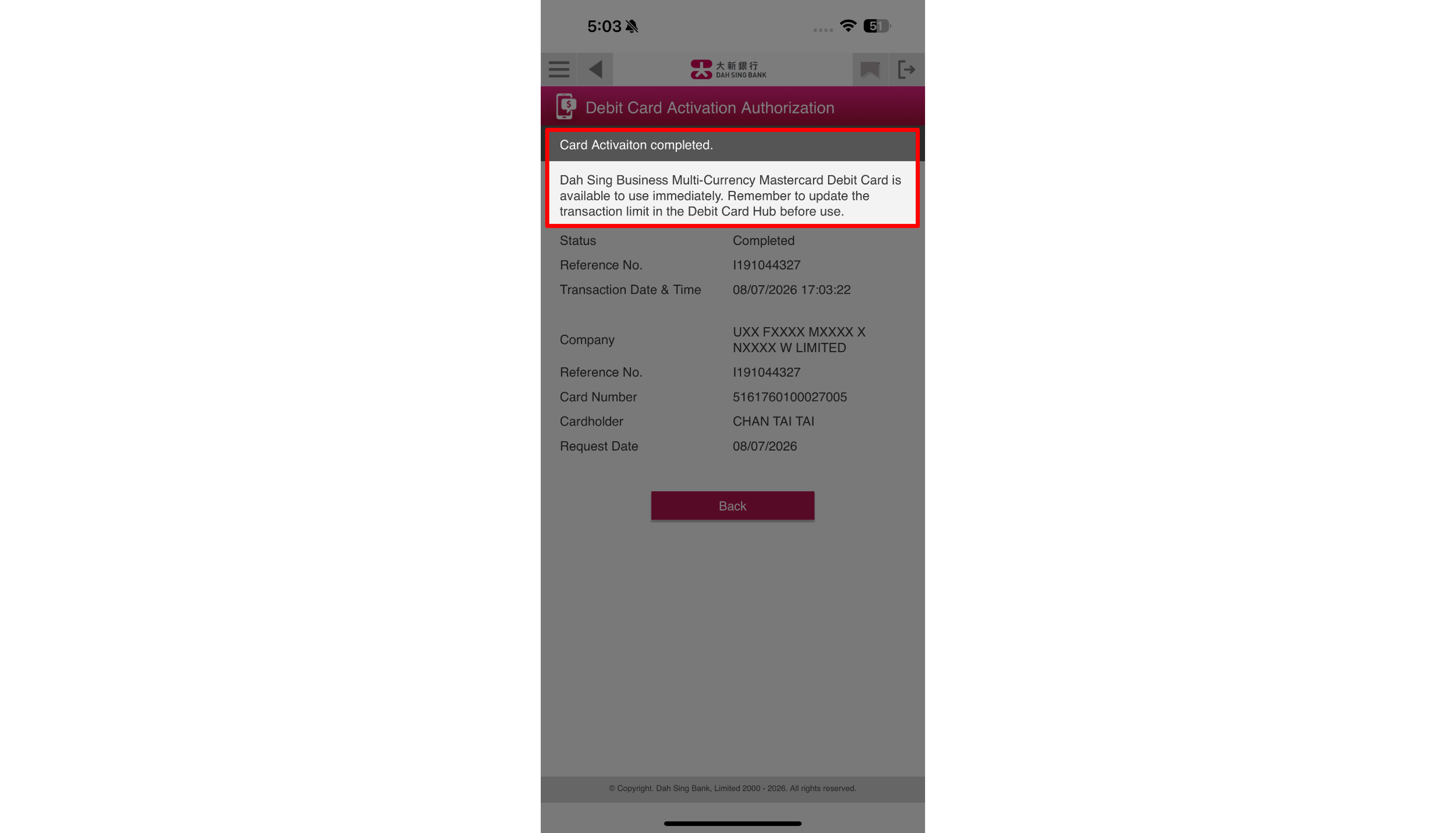
The debit card activation process is now completed, and the Dah Sing Business Multi-Currency Mastercard Debit Card is available to use immediately. As all transaction limits are set as zero by default, cardholder should update the transaction limit in the Debit Card Hub before use.
Activate Debit Card
The debit card activation process is now completed, and the Dah Sing Business Multi-Currency Mastercard Debit Card is available to use immediately. As all transaction limits are set as zero by default, cardholder should update the transaction limit in the Debit Card Hub before use.
Enable Debit Card Auto-FX
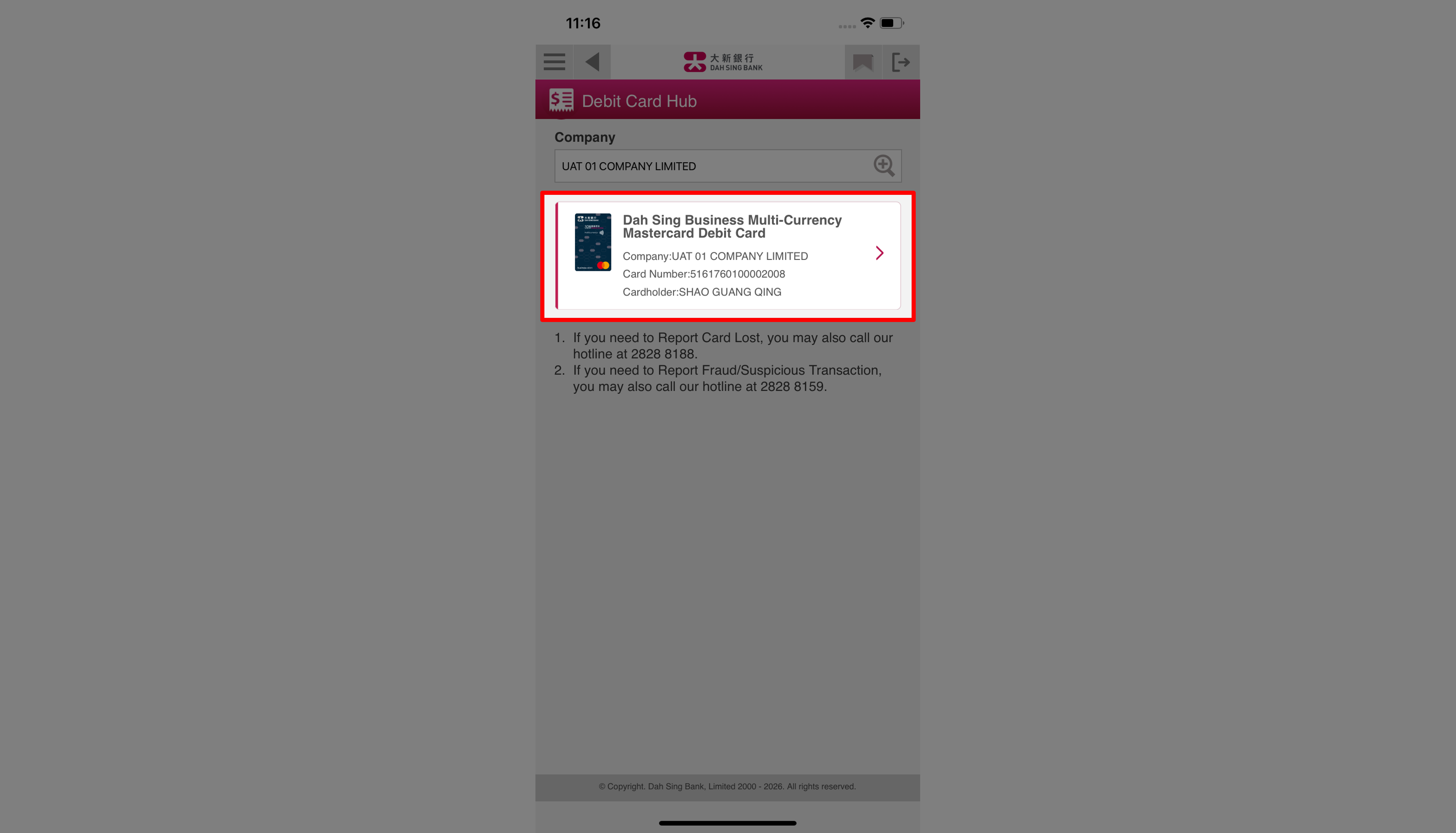
You may log in to 328 Business Mobile Banking to choose the debit card you wish to manage within the "Debit Card Hub" of "Business Debit Card".
Enable Debit Card Auto-FX
You may log in to 328 Business Mobile Banking to choose the debit card you wish to manage within the "Debit Card Hub" of "Business Debit Card".
Enable Debit Card Auto-FX
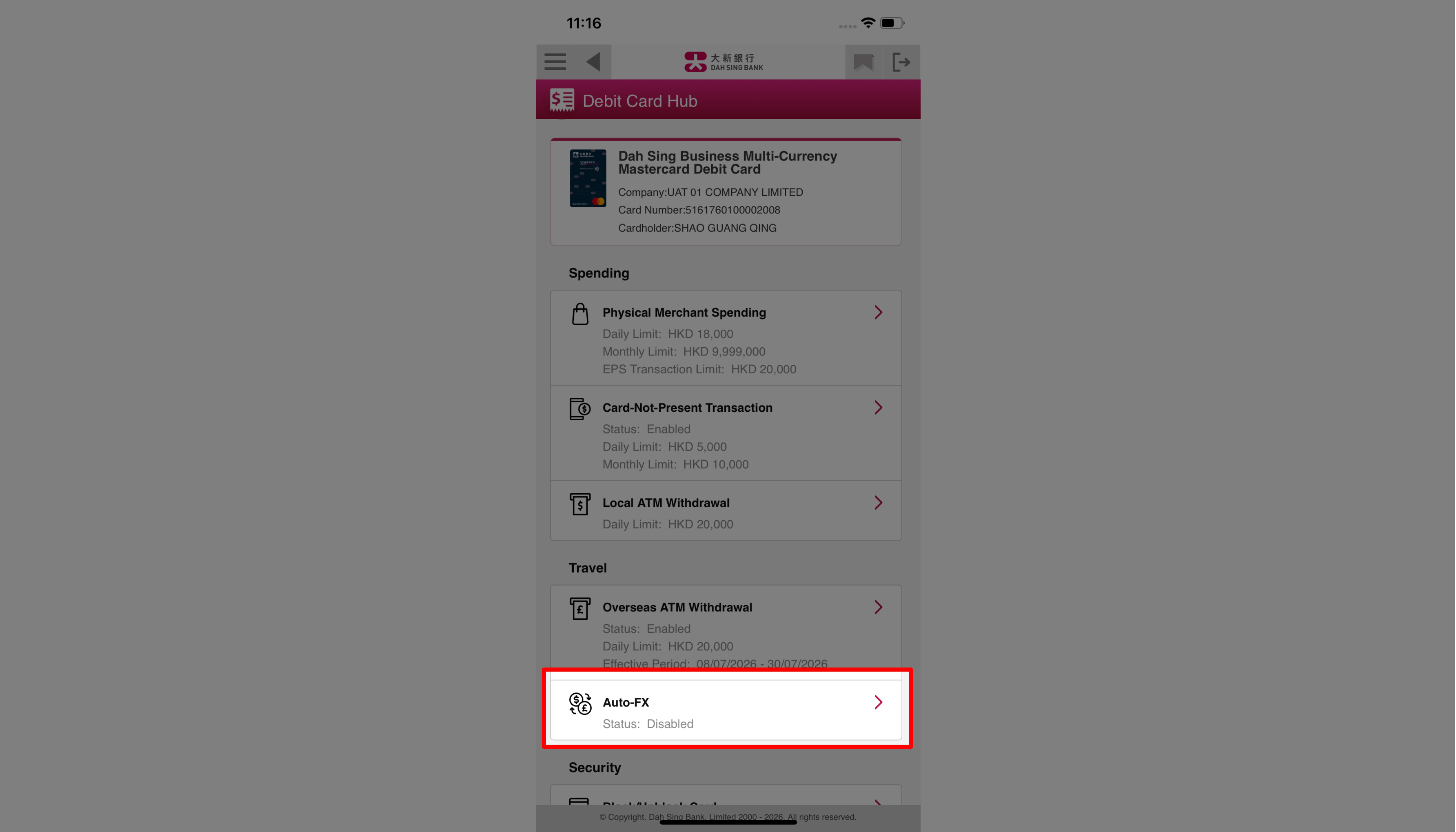
Click onto "Auto-FX" within the "Debit Card Hub".
Enable Debit Card Auto-FX
Click onto "Auto-FX" within the "Debit Card Hub".
Enable Debit Card Auto-FX
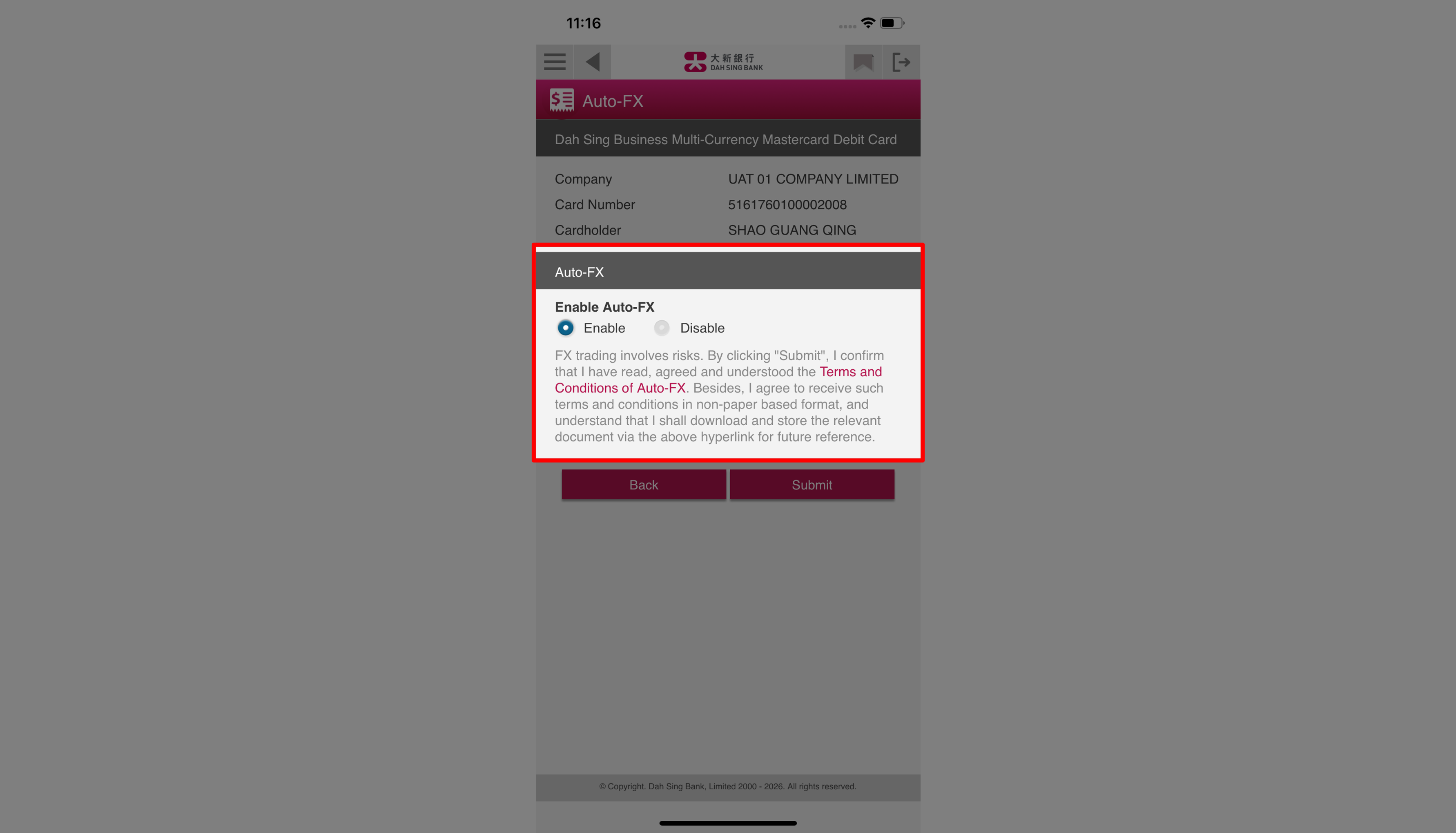
Click "Enable" then submit and confirm the instruction.
Enable Debit Card Auto-FX
Click "Enable" then submit and confirm the instruction.
Enable Debit Card Auto-FX
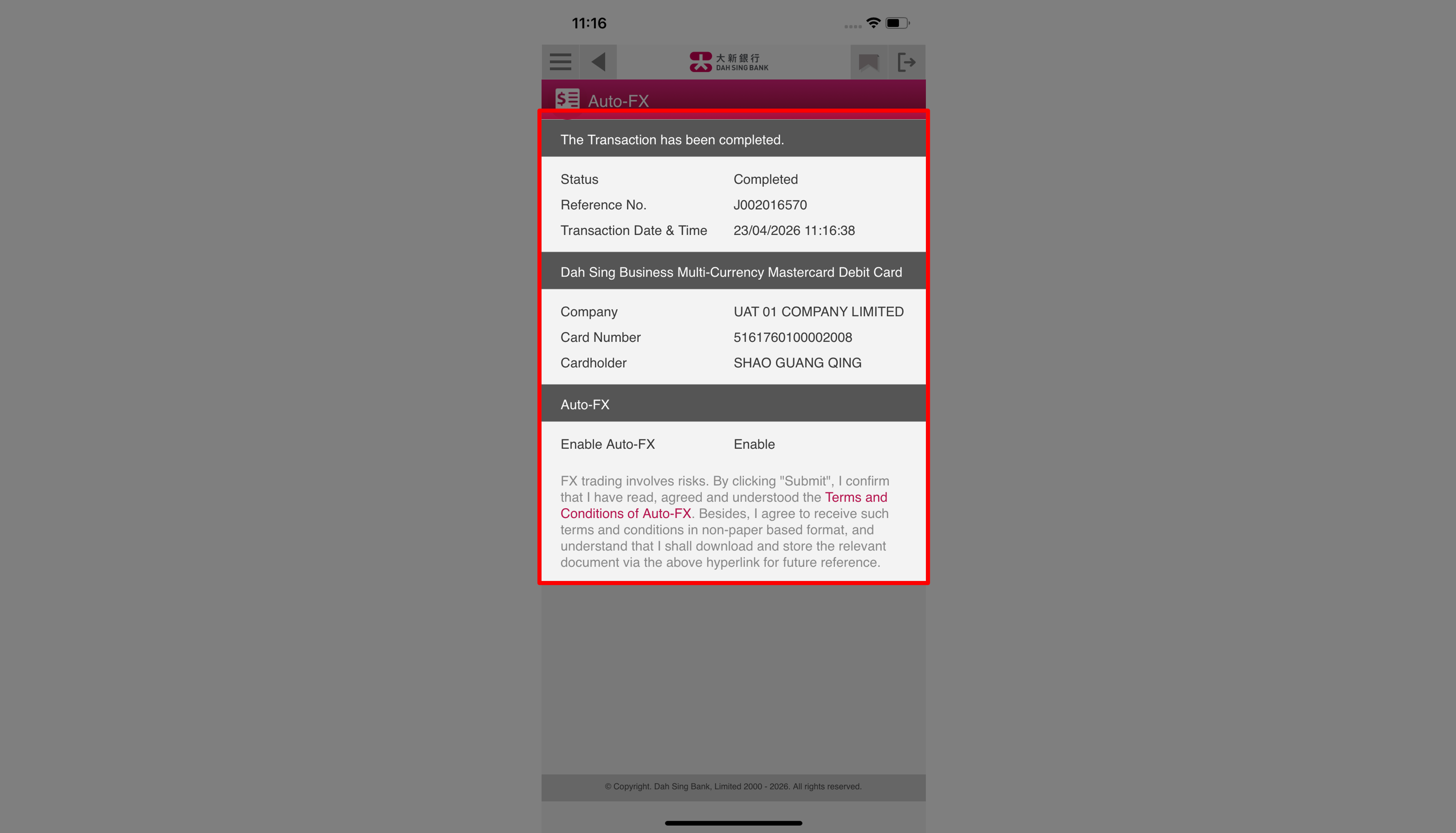
The instruction will be completed immediately. When your foreign currency balance is insufficient for merchant spending transaction or overseas ATM cash withdrawal, Auto-FX will automatically convert your Hong Kong dollars to the required foreign currency and deduct from your Multi-Currency Savings Account under 328 Business Account.
Enable Debit Card Auto-FX
The instruction will be completed immediately. When your foreign currency balance is insufficient for merchant spending transaction or overseas ATM cash withdrawal, Auto-FX will automatically convert your Hong Kong dollars to the required foreign currency and deduct from your Multi-Currency Savings Account under 328 Business Account.
Set Up Security Questions and Answers
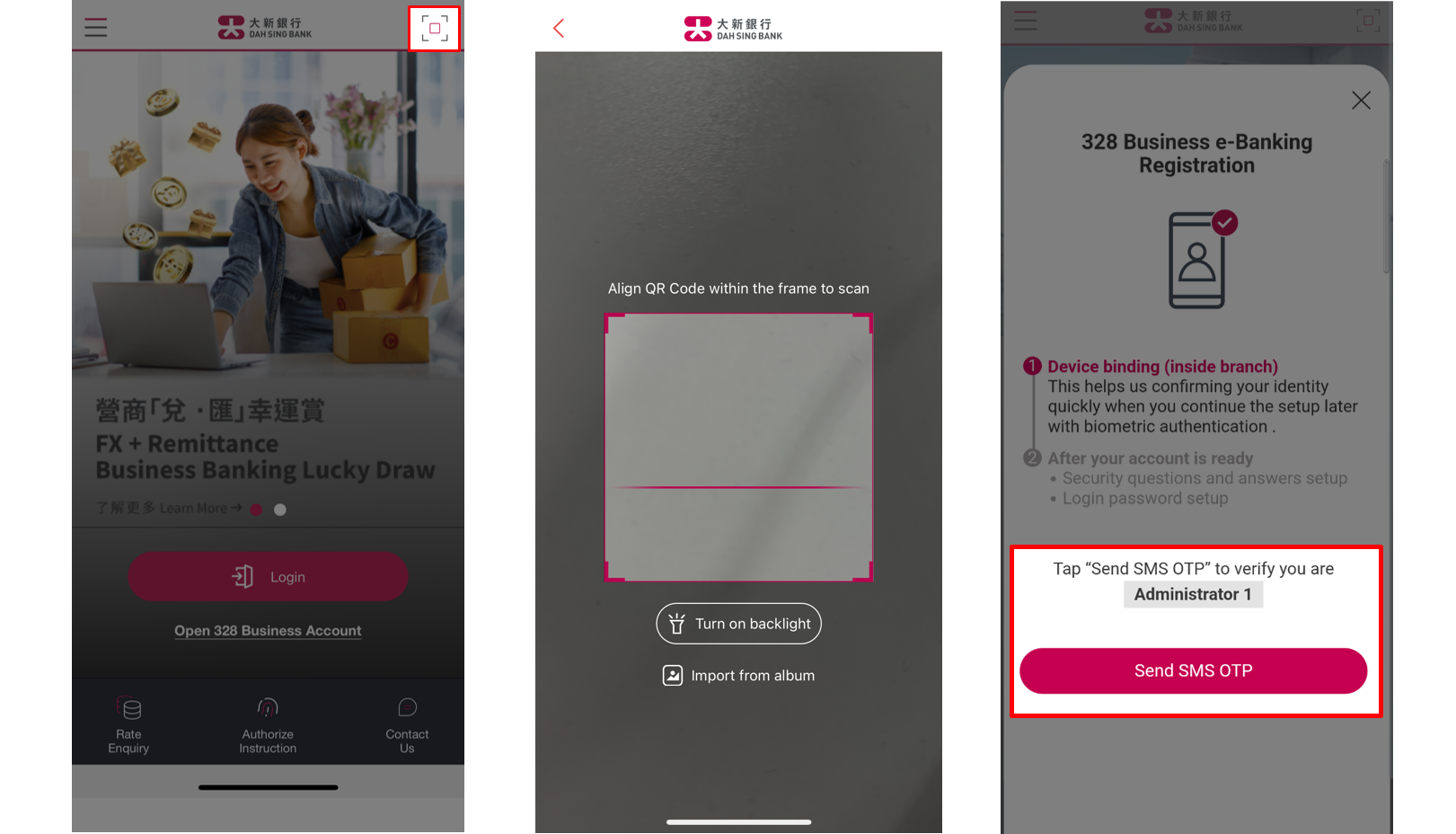
If you apply 328 Business Account and e-Banking in branch, the handling staff will provide you an QR Code. Please open 328 Business Mobile Banking App and click the button at the top right corner on the Homepage to scan the QR Code. Then, verify the Administrator ID and click "Send SMS OTP".
Note: If you submit the account application via online with identity verification completed, but required to visit branch for follow-up, once your account is opened, you can directly set up your password via online (refer to step 5).
Set Up Security Questions and Answers
If you apply 328 Business Account and e-Banking in branch, the handling staff will provide you an QR Code. Please open 328 Business Mobile Banking App and click the button at the top right corner on the Homepage to scan the QR Code. Then, verify the Administrator ID and click "Send SMS OTP".
Note: If you submit the account application via online with identity verification completed, but required to visit branch for follow-up, once your account is opened, you can directly set up your password via online (refer to step 5).
Set Up Security Questions and Answers
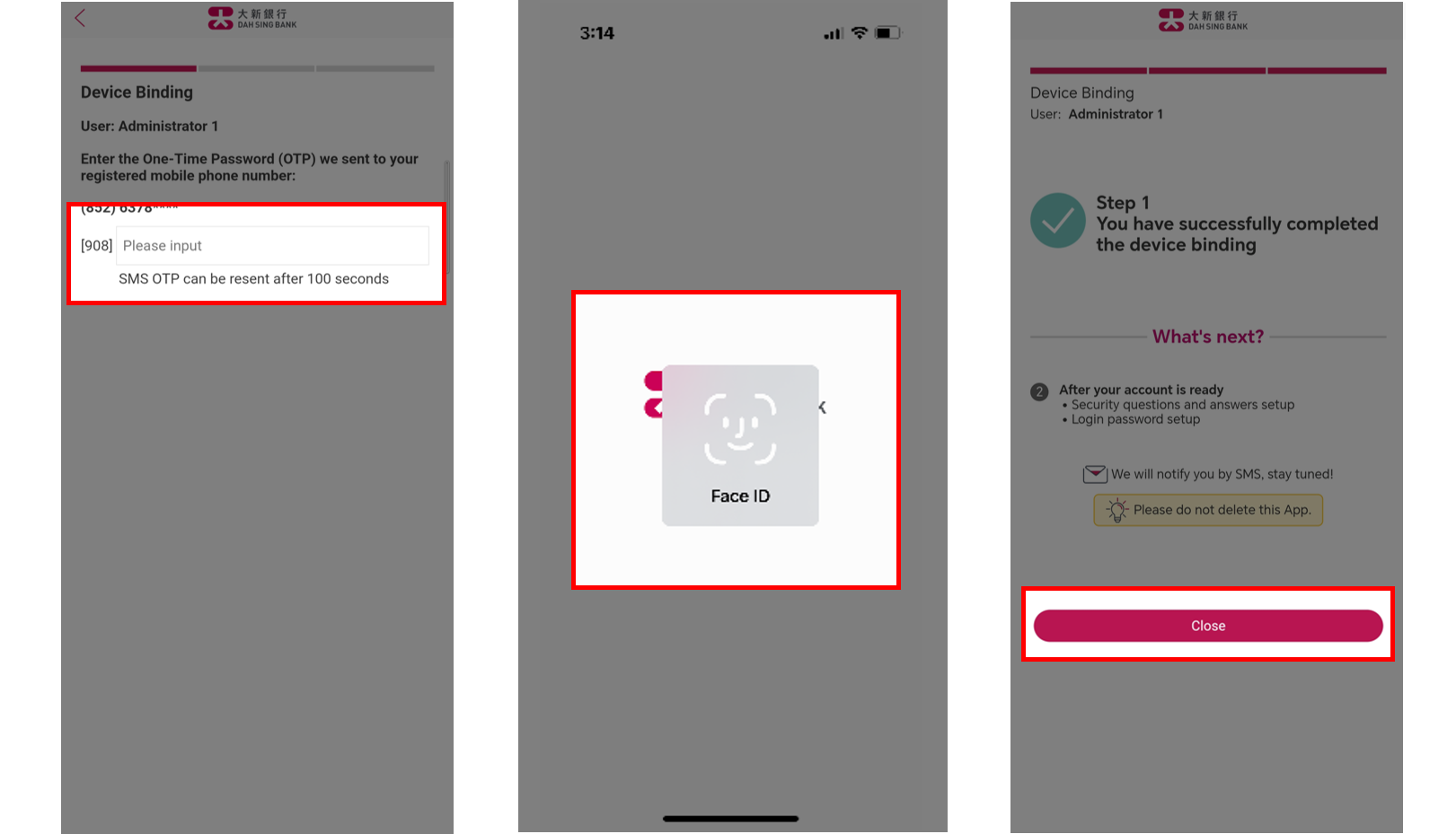
Enter the SMS OTP received on the mobile phone number registered with us. Then, verify by biometric authentication, please touch the fingerprint sensor on your mobile phone to verify your fingerprint; or please look at your device camera to verify your Face ID or facial map. Upon completion of device binding, click "Close" and back to the homepage.
Set Up Security Questions and Answers
Enter the SMS OTP received on the mobile phone number registered with us. Then, verify by biometric authentication, please touch the fingerprint sensor on your mobile phone to verify your fingerprint; or please look at your device camera to verify your Face ID or facial map. Upon completion of device binding, click "Close" and back to the homepage.
Set Up Security Questions and Answers
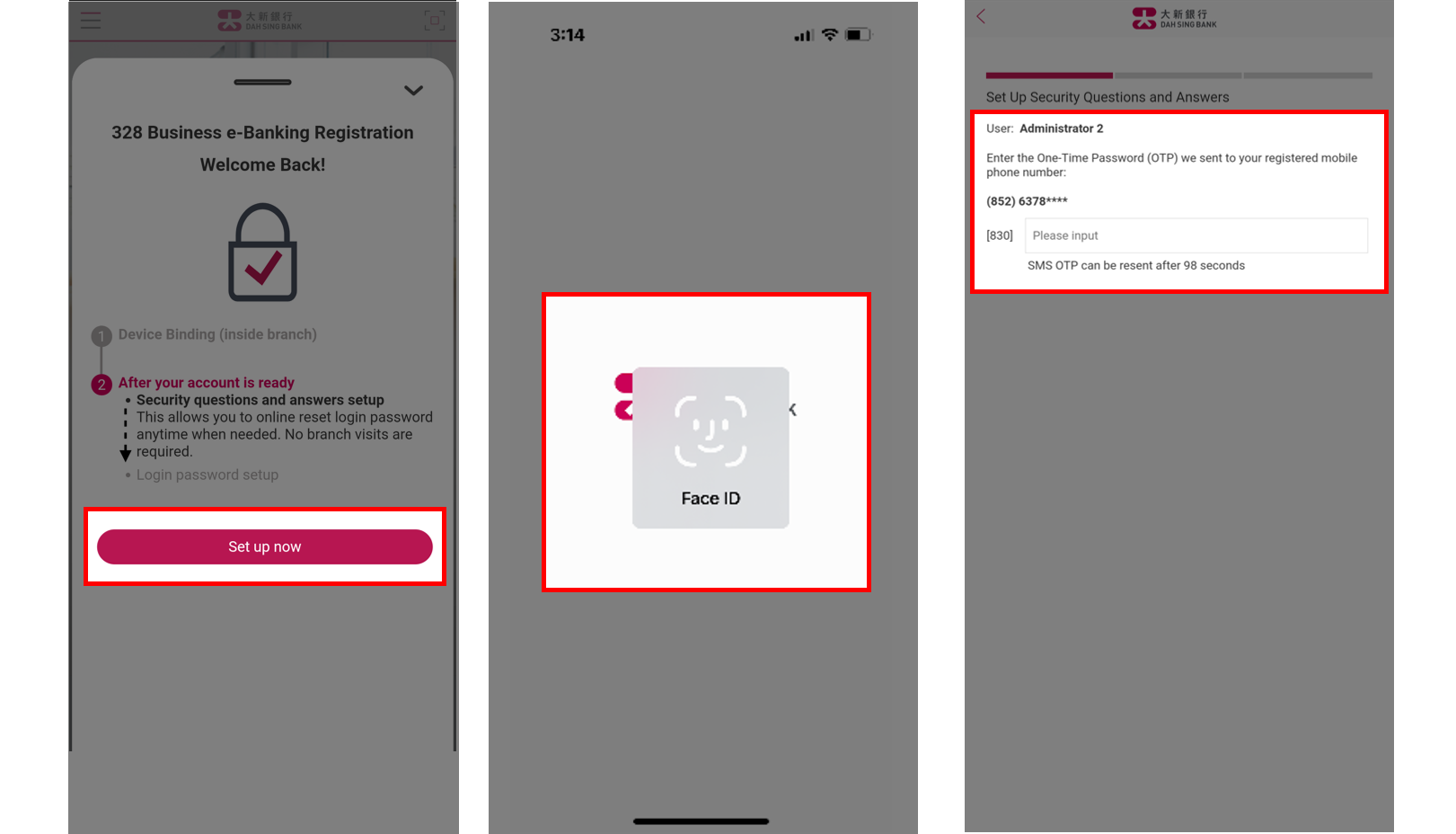
The homepage will display "328 Business e-Banking Registration" page. When your account is successfully opened, open your 328 Business Mobile Banking App and click "Set up now" on this page. Verify by biometric authentication, please touch the fingerprint sensor on your mobile phone to verify your fingerprint; or please look at your device camera to verify your Face ID or facial map. Then, Enter the SMS OTP received on the mobile phone number registered with us.
Set Up Security Questions and Answers
The homepage will display "328 Business e-Banking Registration" page. When your account is successfully opened, open your 328 Business Mobile Banking App and click "Set up now" on this page. Verify by biometric authentication, please touch the fingerprint sensor on your mobile phone to verify your fingerprint; or please look at your device camera to verify your Face ID or facial map. Then, Enter the SMS OTP received on the mobile phone number registered with us.
Set Up Security Questions and Answers
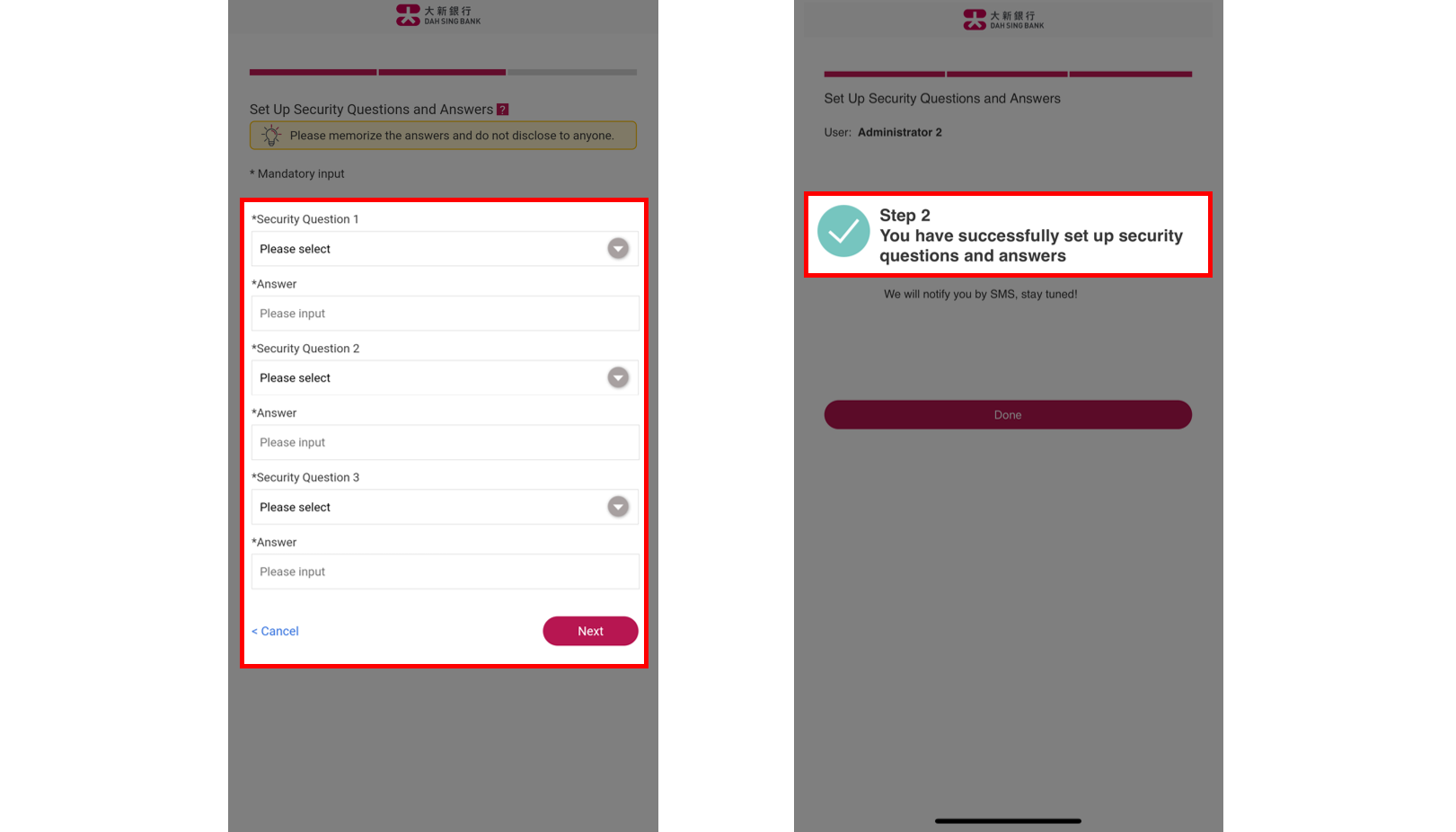
Choose 3 different security questions and enter the corresponding answers, then click "Next" and the set-up is completed.
Set Up Security Questions and Answers
Choose 3 different security questions and enter the corresponding answers, then click "Next" and the set-up is completed.
Set Up Login Password
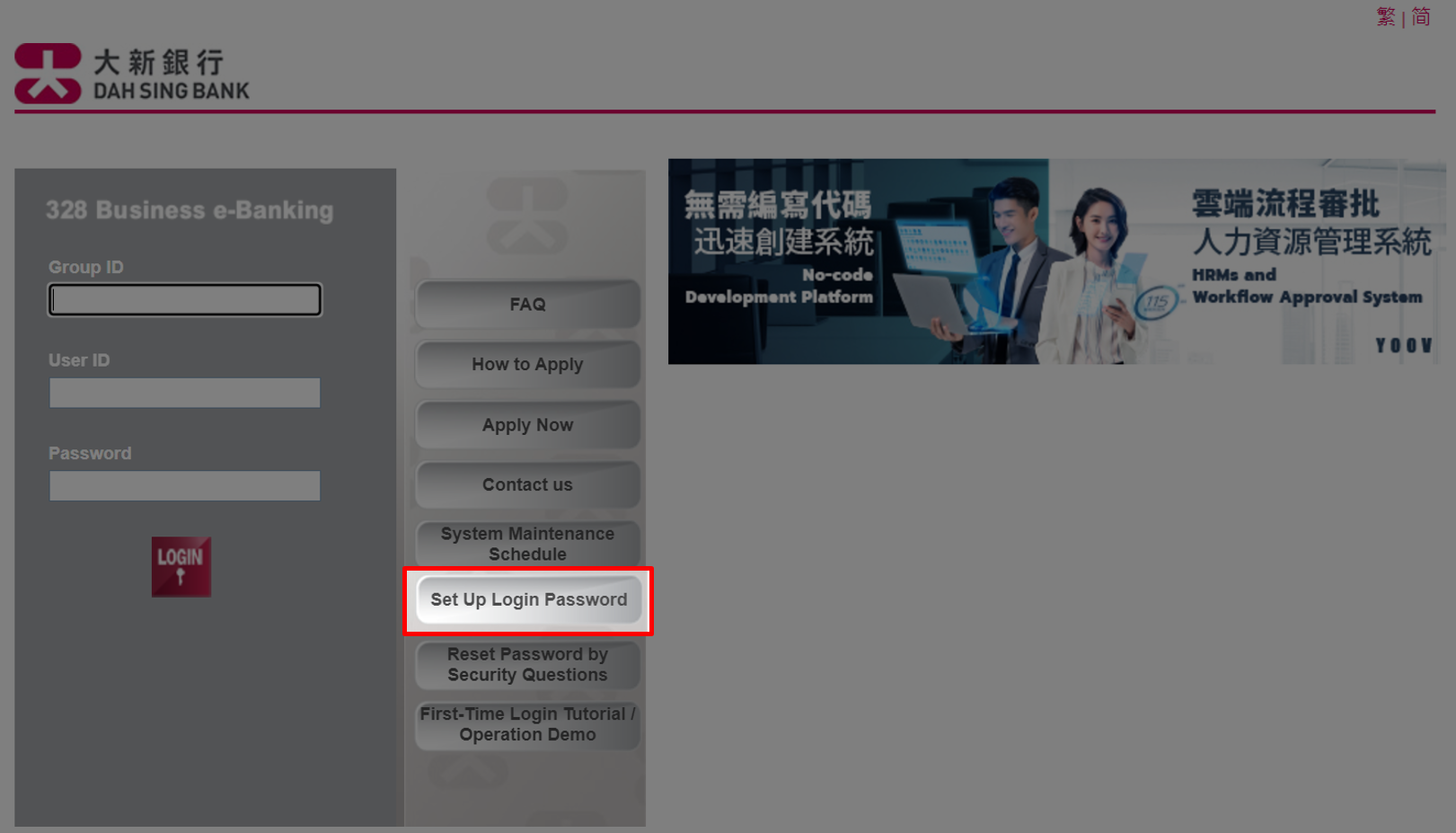
After setting up of your security questions and answers, click "Set Up Login Password" on 328 Business e-Banking Login Page (desktop only).
Set Up Login Password
After setting up of your security questions and answers, click "Set Up Login Password" on 328 Business e-Banking Login Page (desktop only).
Set Up Login Password
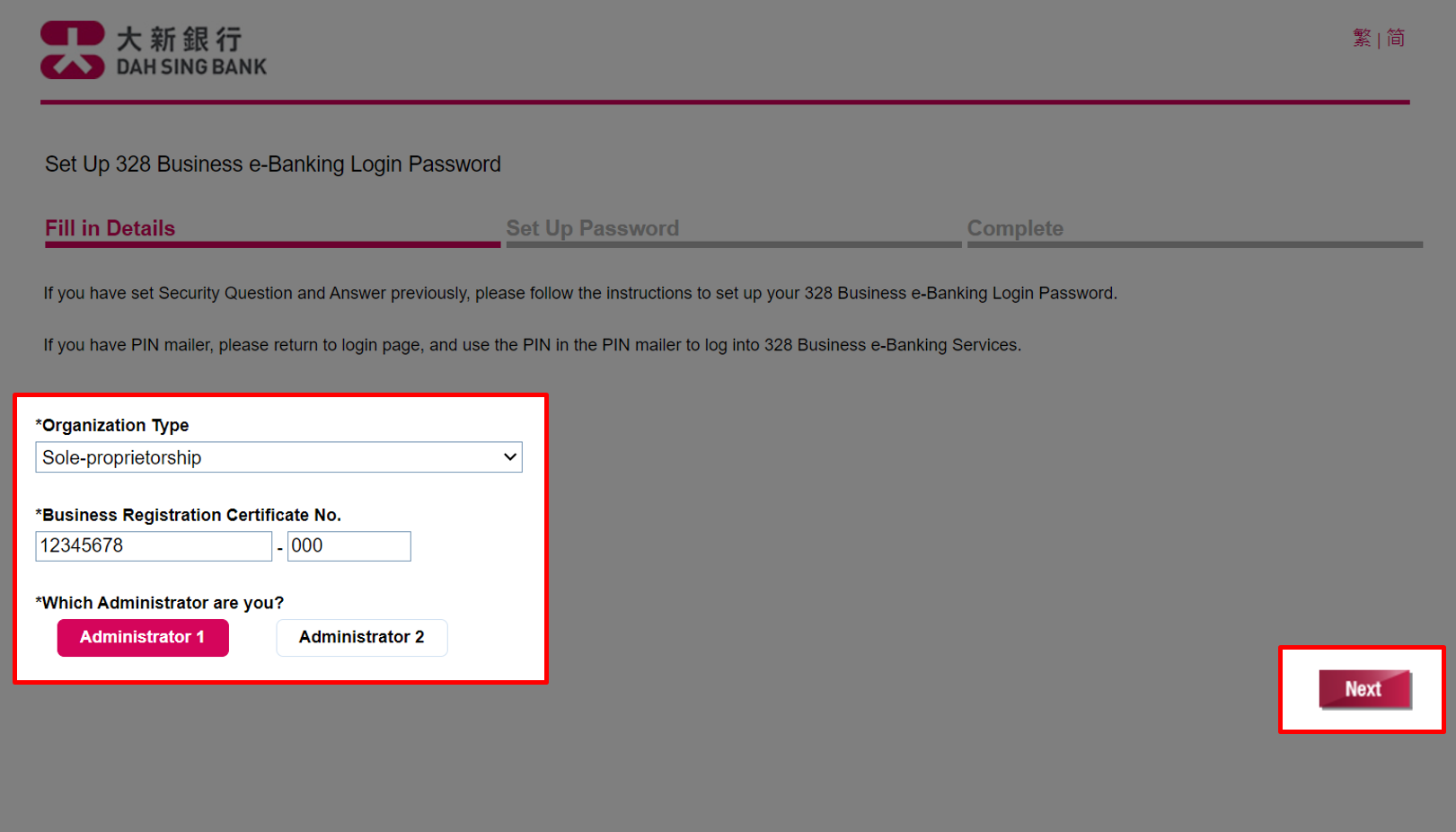
Select "Organization Type", enter "Business Registration Certificate No." and select which Administrator are you, either "Administrator 1" or "Administrator 2", then click "Next".
Set Up Login Password
Select "Organization Type", enter "Business Registration Certificate No." and select which Administrator are you, either "Administrator 1" or "Administrator 2", then click "Next".
Set Up Login Password
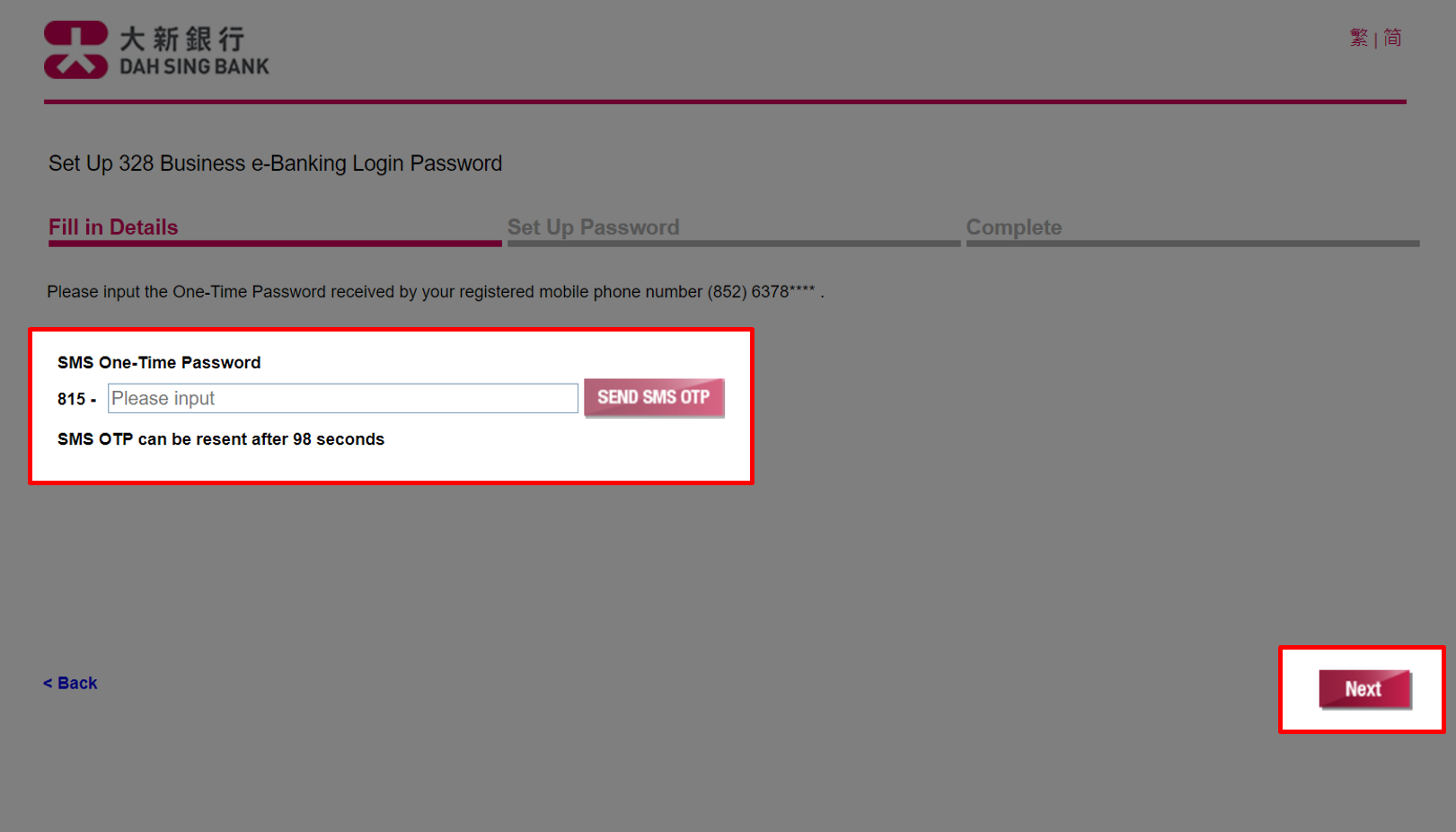
Enter the SMS OTP received on the mobile phone number registered with us, then click "Next".
Set Up Login Password
Enter the SMS OTP received on the mobile phone number registered with us, then click "Next".
Set Up Login Password
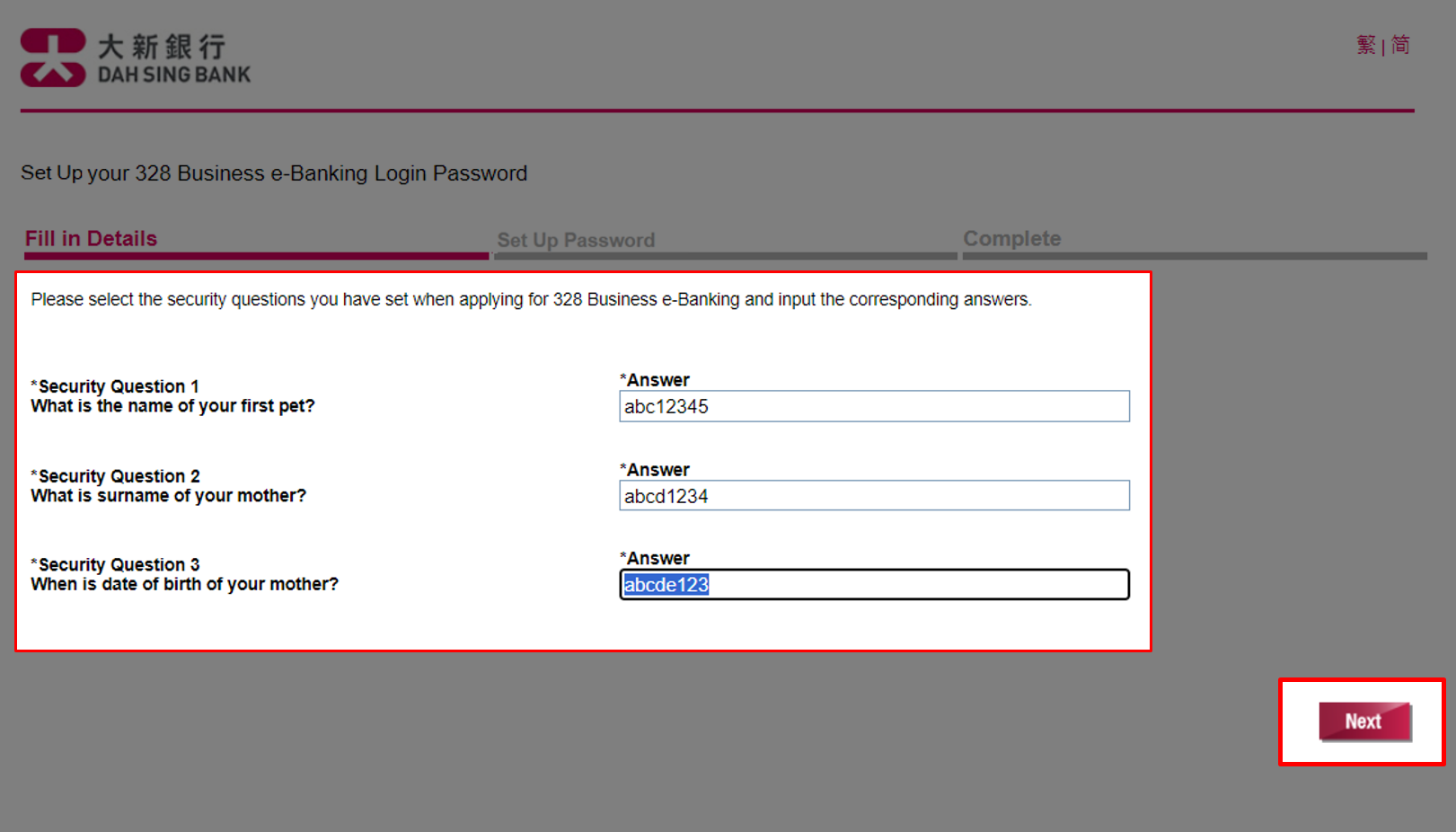
Enter the answers to the security questions you have previously set, then click "Next".
Set Up Login Password
Enter the answers to the security questions you have previously set, then click "Next".
Set Up Login Password
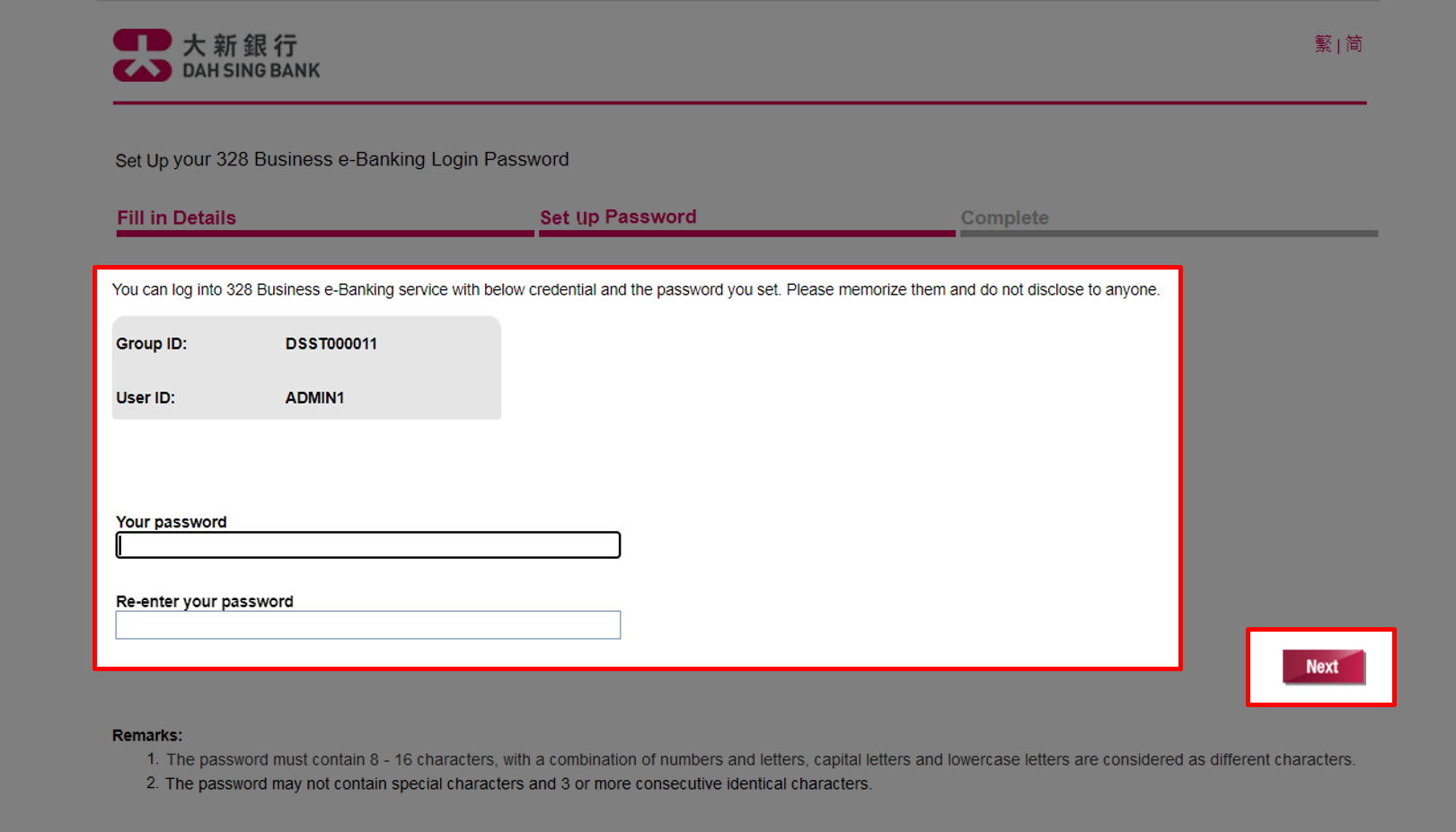
Set Up Password page will display your login information, please memorize the "Group ID" and "User ID". Then, set up your login password, click "Next"
Note: If you do not memorize the "Group ID" and "User ID" in this step, please refer to the Confirmation Advice which was sent the mailing address of the master company.
Set Up Login Password
Set Up Password page will display your login information, please memorize the "Group ID" and "User ID". Then, set up your login password, click "Next"
Note: If you do not memorize the "Group ID" and "User ID" in this step, please refer to the Confirmation Advice which was sent the mailing address of the master company.
Set Up Login Password
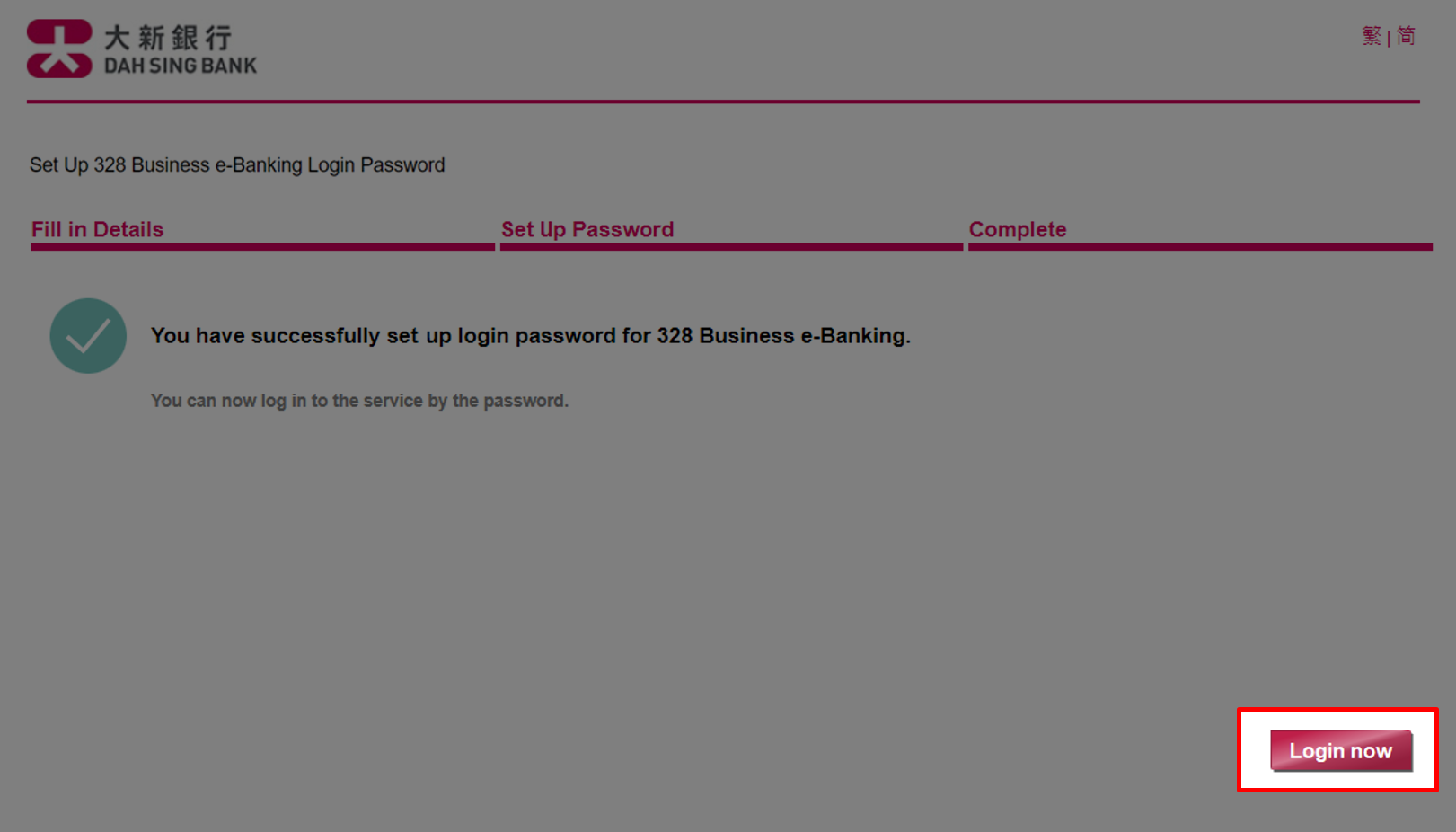
You have successfully set up the login password, please click "Login now" and you will be re-directed to the login page to log in the 328 Business e-Banking.
Set Up Login Password
You have successfully set up the login password, please click "Login now" and you will be re-directed to the login page to log in the 328 Business e-Banking.
Login
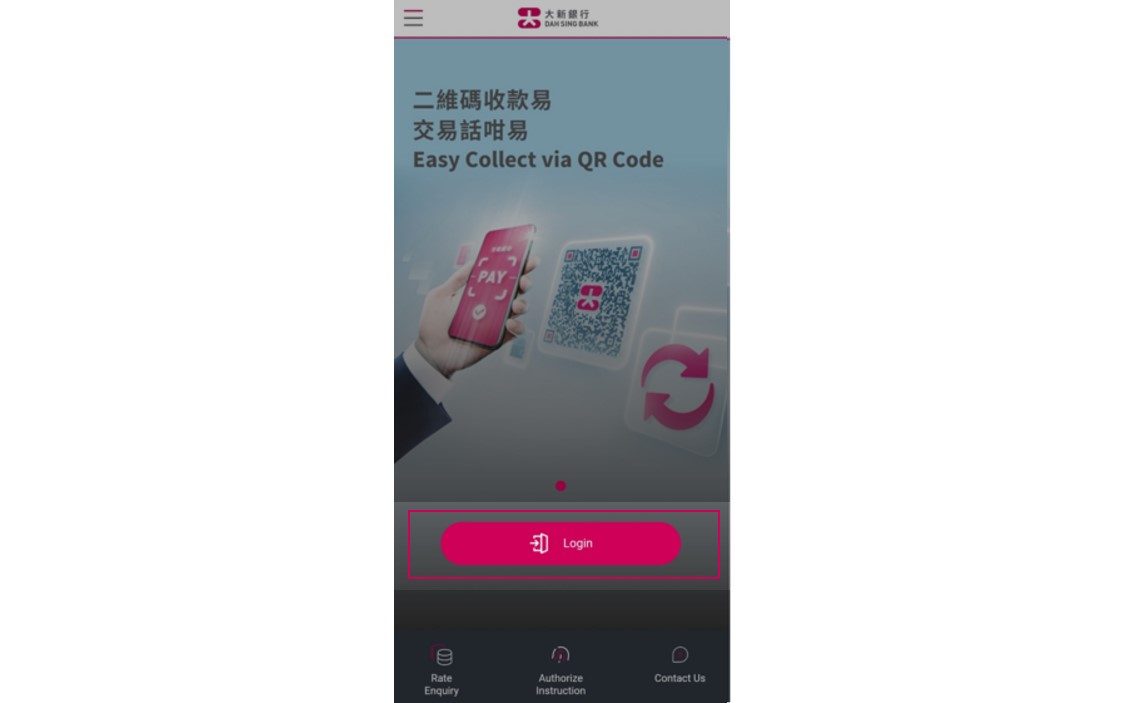
Select "Login" to log into 328 Business Mobile Banking.
Login
Select "Login" to log into 328 Business Mobile Banking.
Login
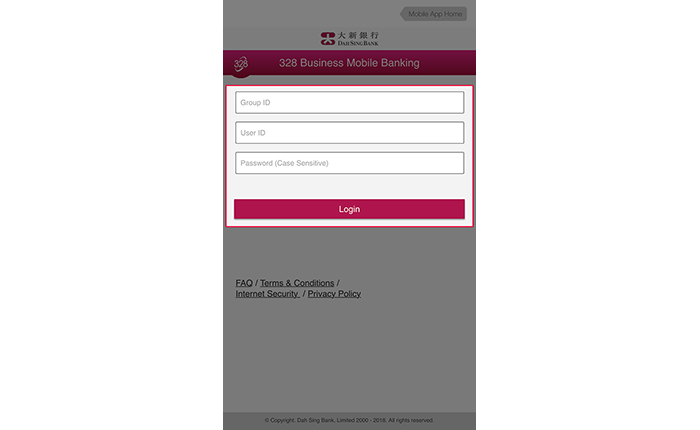
Enter your 328 Business e-Banking Group ID, User ID and Password and tap "Login" to log into 328 Business Mobile Banking.
Login
Enter your 328 Business e-Banking Group ID, User ID and Password and tap "Login" to log into 328 Business Mobile Banking.
Login
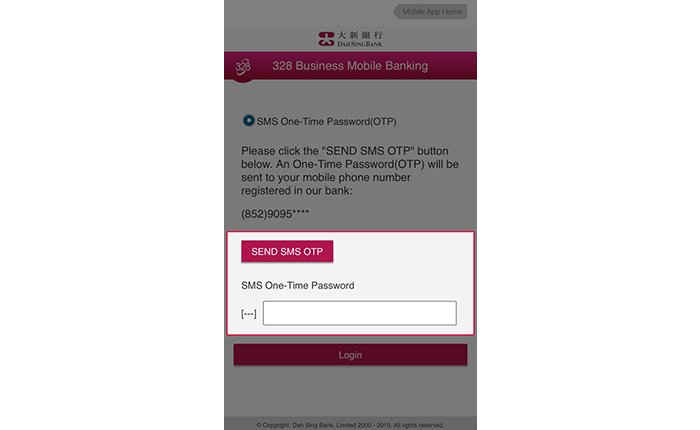
Please select "SEND SMS OTP". Then, enter the SMS One-time Password (OTP) received on the mobile phone number registered with us for Two-factor Authentication, and then select "Login".
Login
Please select "SEND SMS OTP". Then, enter the SMS One-time Password (OTP) received on the mobile phone number registered with us for Two-factor Authentication, and then select "Login".
Login
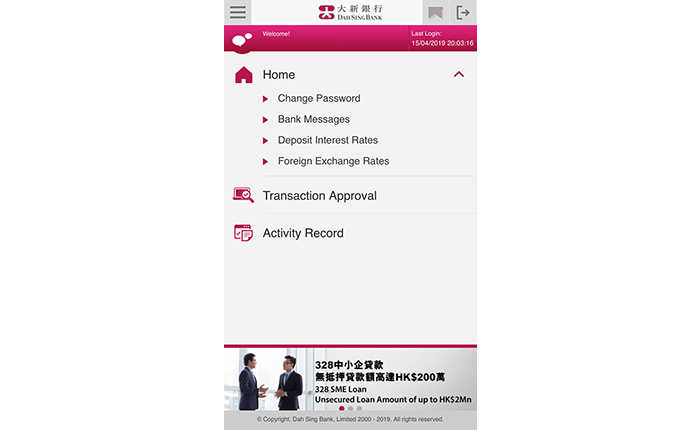
If you have enabled Fingerprint Authentication for login, please touch the fingerprint sensor on your mobile phone to verify your fingerprint registered on your device and log in; If you have enabled Face ID Authentication or Facial Recognition for login, please look at your device camera to verify your Face ID or facial map to log in.
Login
If you have enabled Fingerprint Authentication for login, please touch the fingerprint sensor on your mobile phone to verify your fingerprint registered on your device and log in; If you have enabled Face ID Authentication or Facial Recognition for login, please look at your device camera to verify your Face ID or facial map to log in.
Login
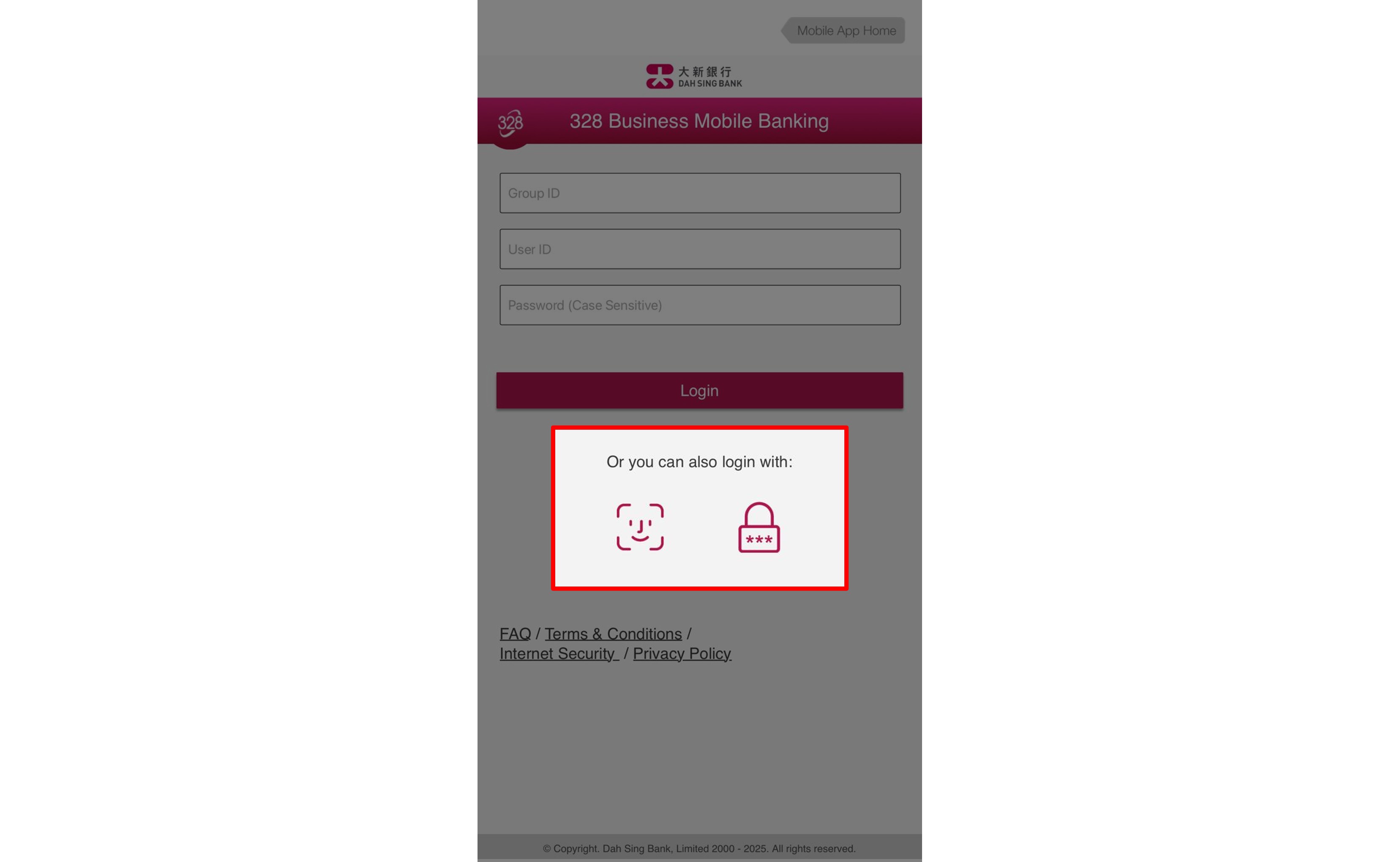
You can log into 328 Business Mobile Banking using another authentication method you have registered for by tapping the authentication icons.
Login
You can log into 328 Business Mobile Banking using another authentication method you have registered for by tapping the authentication icons.
Transaction Approval (via Security Authentication)
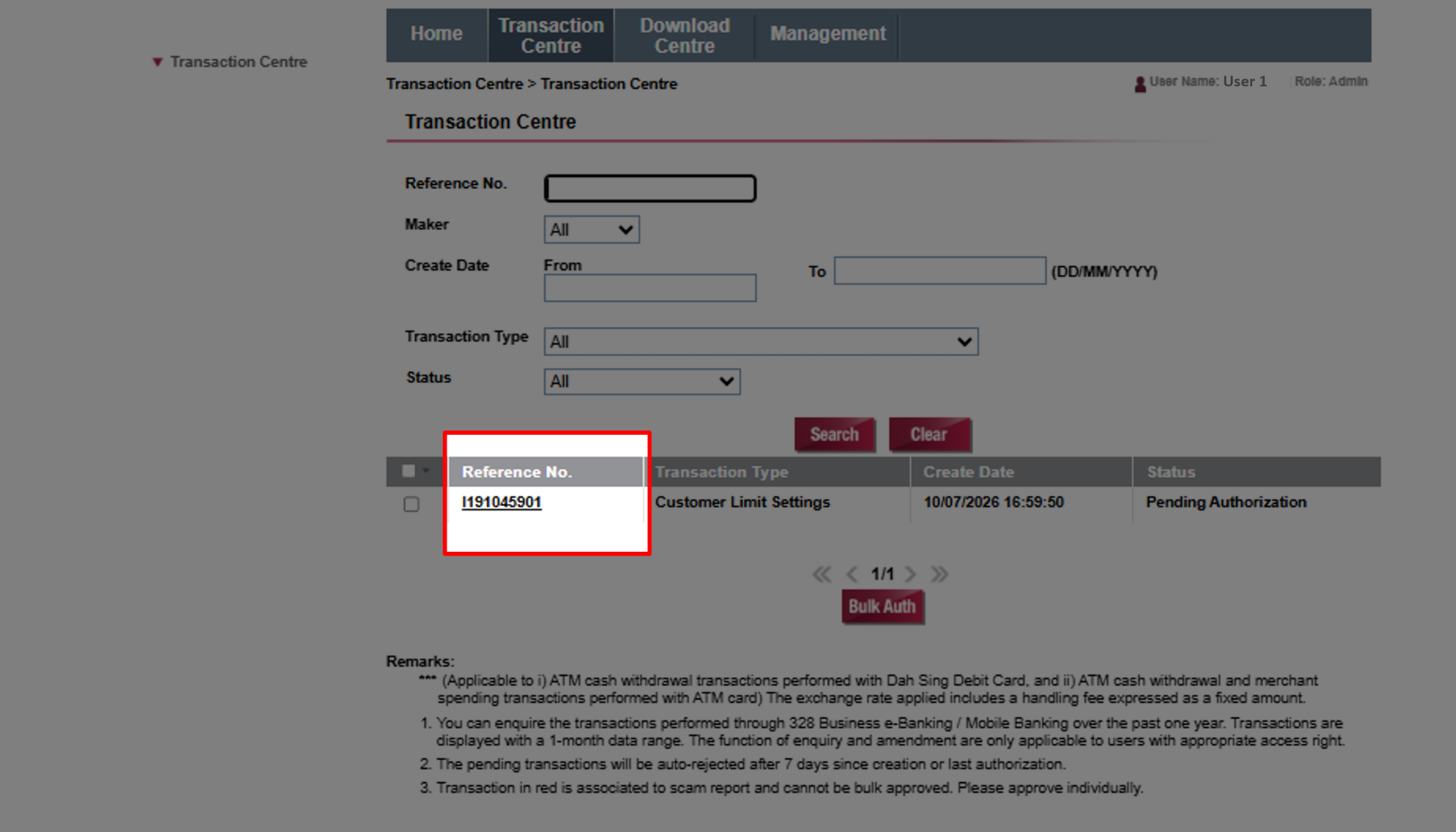
Select individual instruction by selecting the corresponding "Reference No.".
Transaction Approval (via Security Authentication)
Select individual instruction by selecting the corresponding "Reference No.".
Transaction Approval (via Security Authentication)
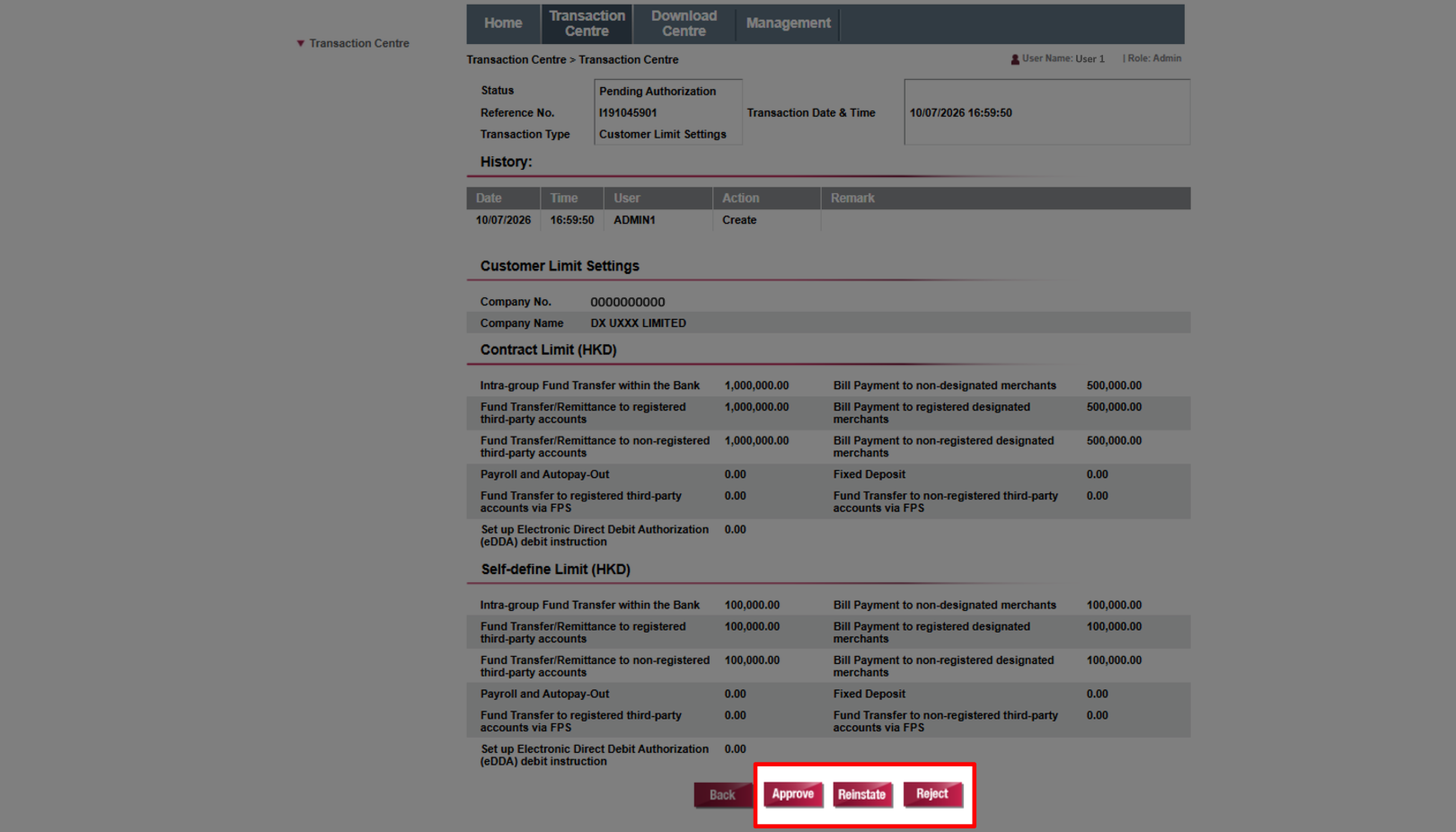
You can "Approve", "Reinstate" or "Reject" the instruction.
Transaction Approval (via Security Authentication)
You can "Approve", "Reinstate" or "Reject" the instruction.
Transaction Approval (via Security Authentication)
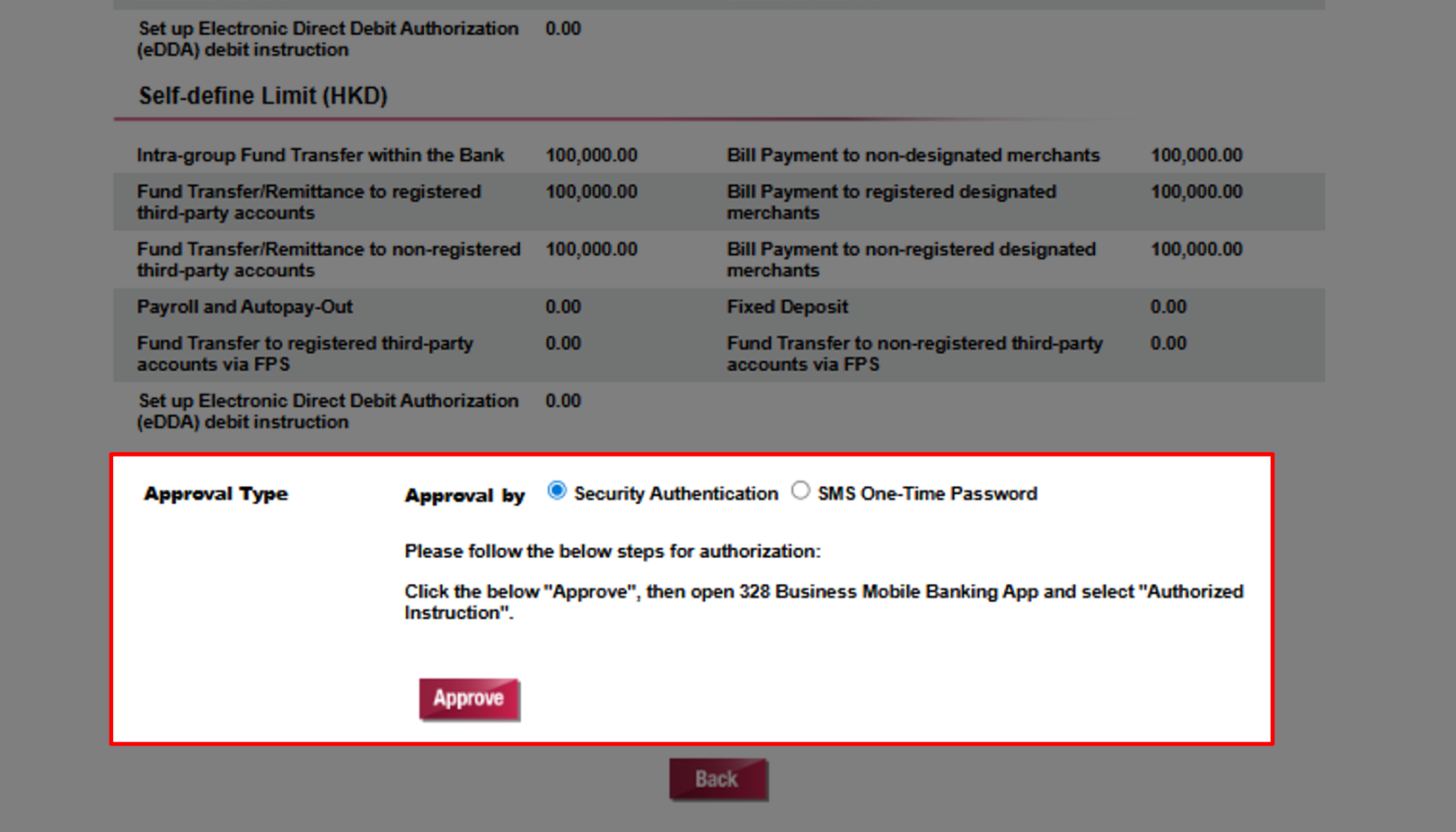
Verify instruction details and click "Approve" to approve the instruction via Security Authentication.
Transaction Approval (via Security Authentication)
Verify instruction details and click "Approve" to approve the instruction via Security Authentication.
Transaction Approval (via Security Authentication)
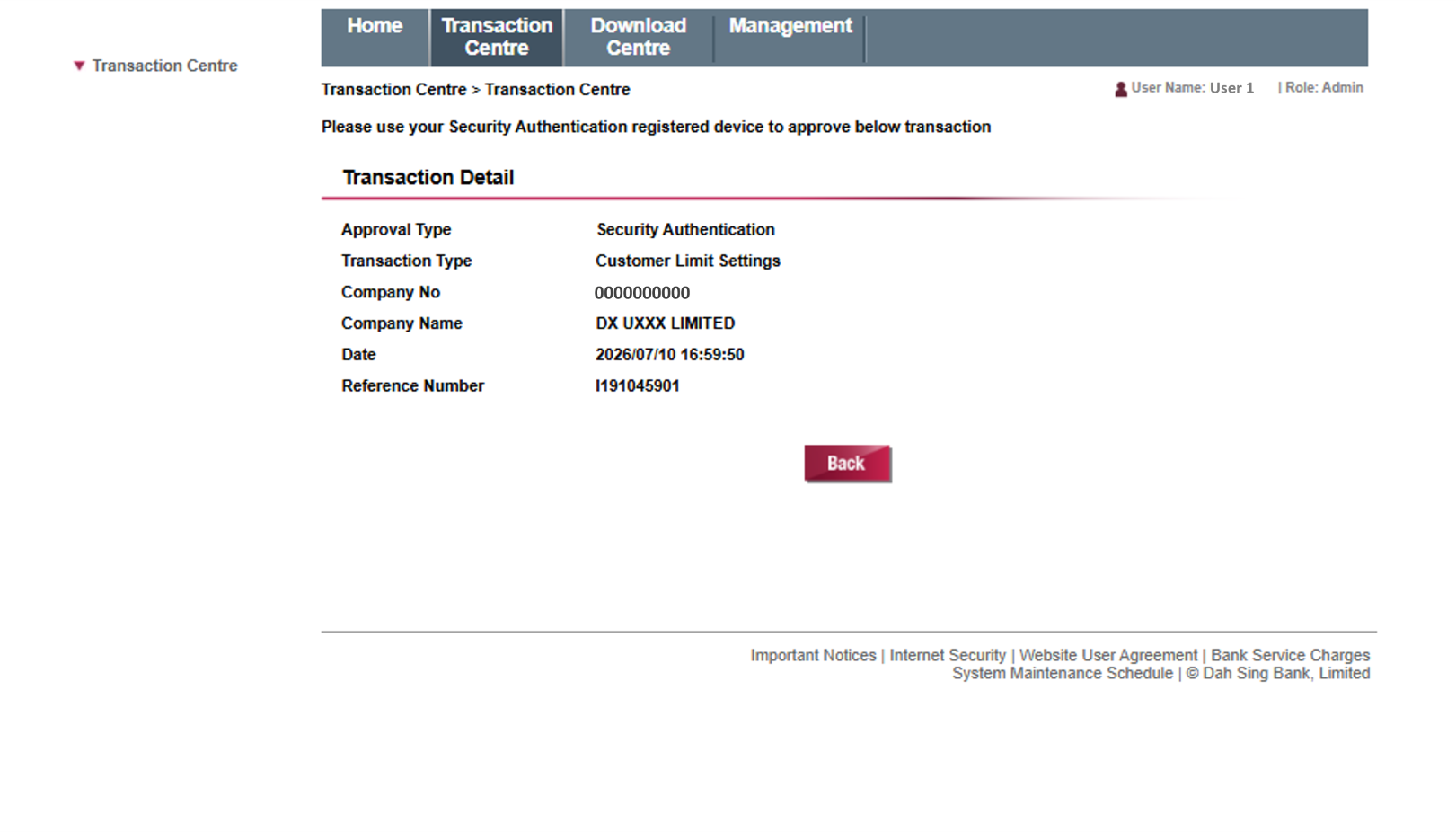
Please use your bound mobile device to approve the instruction via Security Authentication.
Transaction Approval (via Security Authentication)
Please use your bound mobile device to approve the instruction via Security Authentication.
Transaction Approval (via Security Authentication)
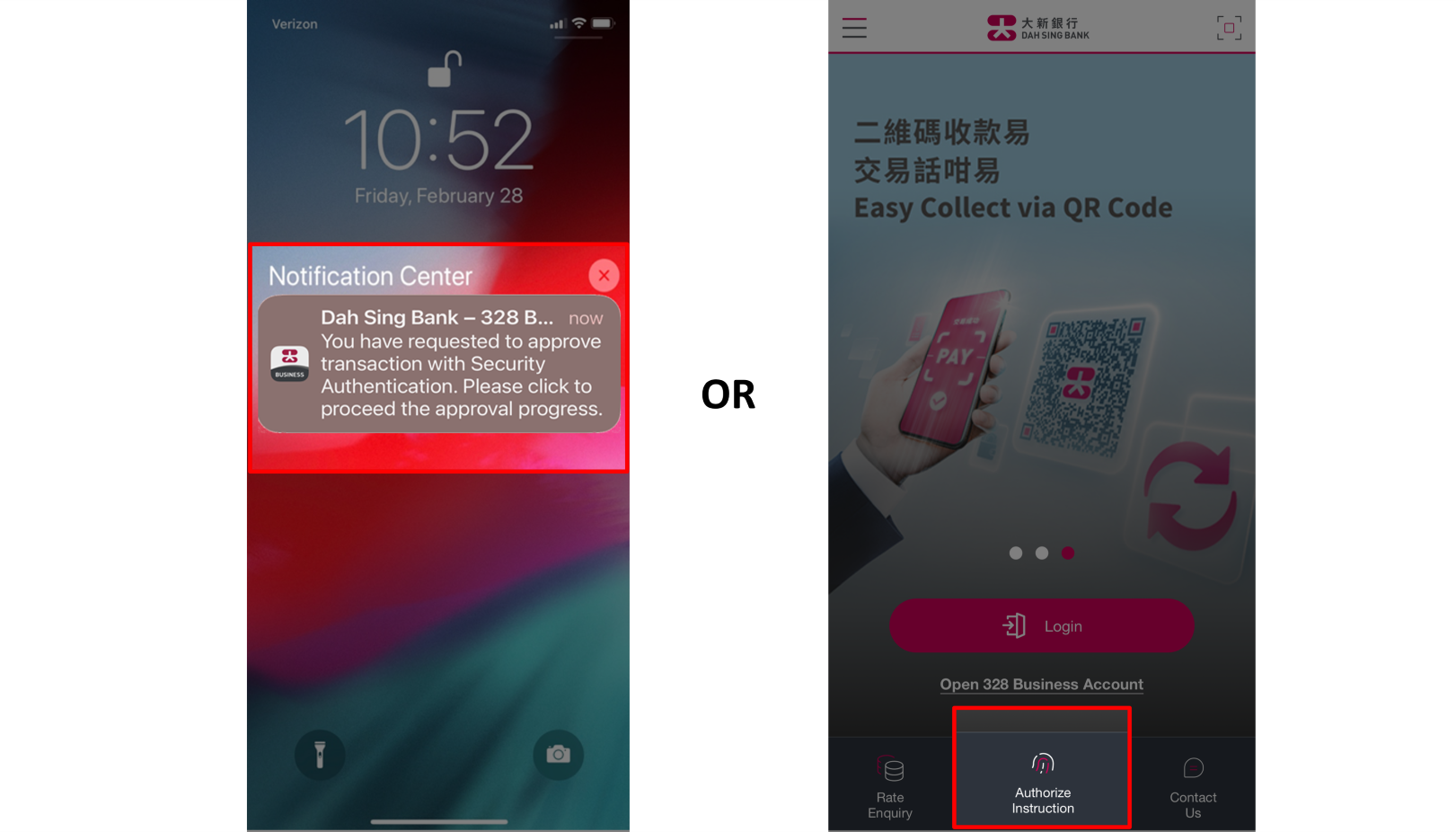
Your bound mobile device will receive a push notification. Touch the push notification to open the 328 Business Mobile App and authorize the instruction. Alternatively, you can also open the 328 Business Mobile App directly and select the "Authorize Instruction" option.
Transaction Approval (via Security Authentication)
Your bound mobile device will receive a push notification. Touch the push notification to open the 328 Business Mobile App and authorize the instruction. Alternatively, you can also open the 328 Business Mobile App directly and select the "Authorize Instruction" option.
Transaction Approval (via Security Authentication)
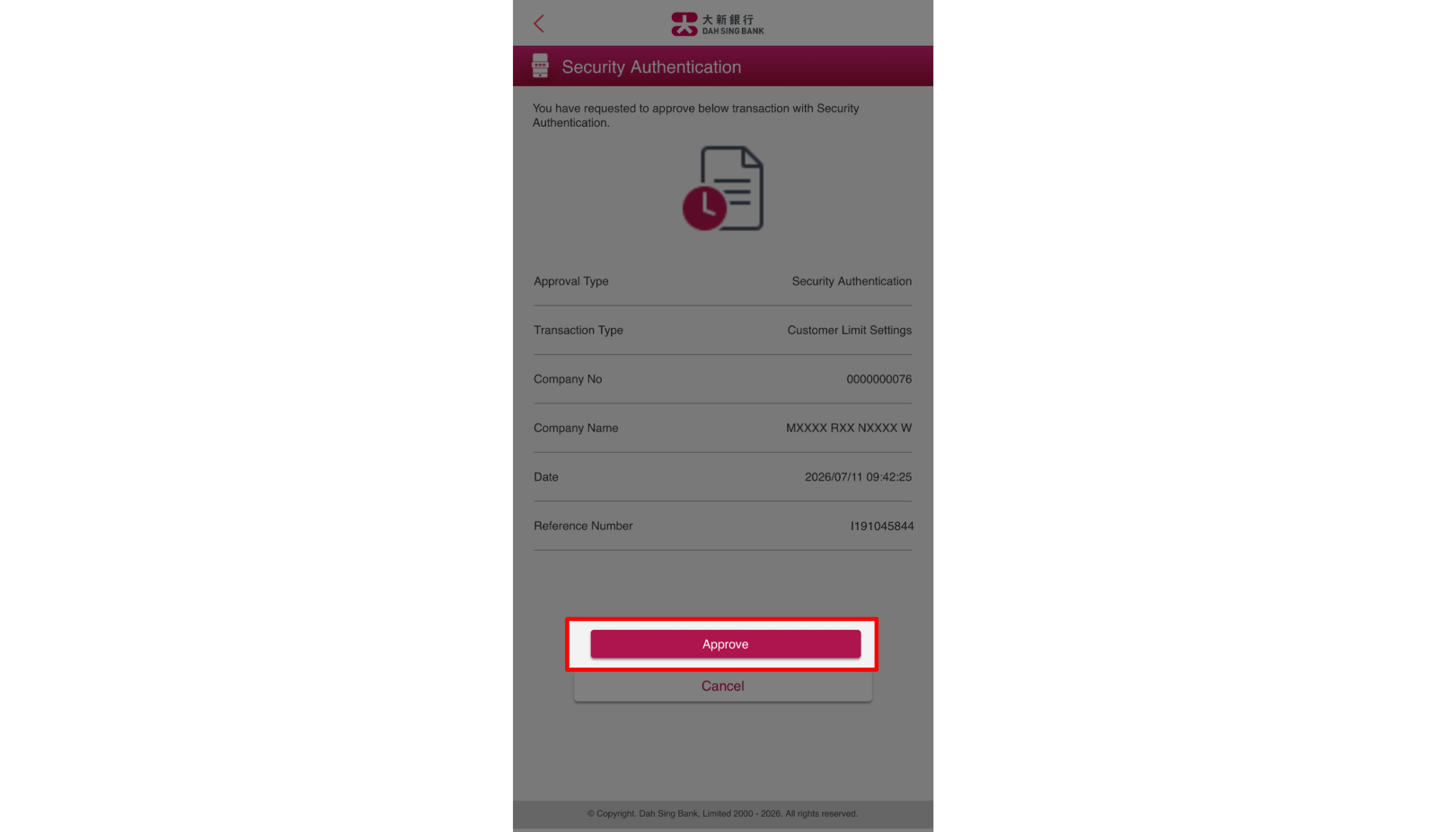
Tap "Approve" on the authentication page to proceed.
Transaction Approval (via Security Authentication)
Tap "Approve" on the authentication page to proceed.
Transaction Approval (via Security Authentication)
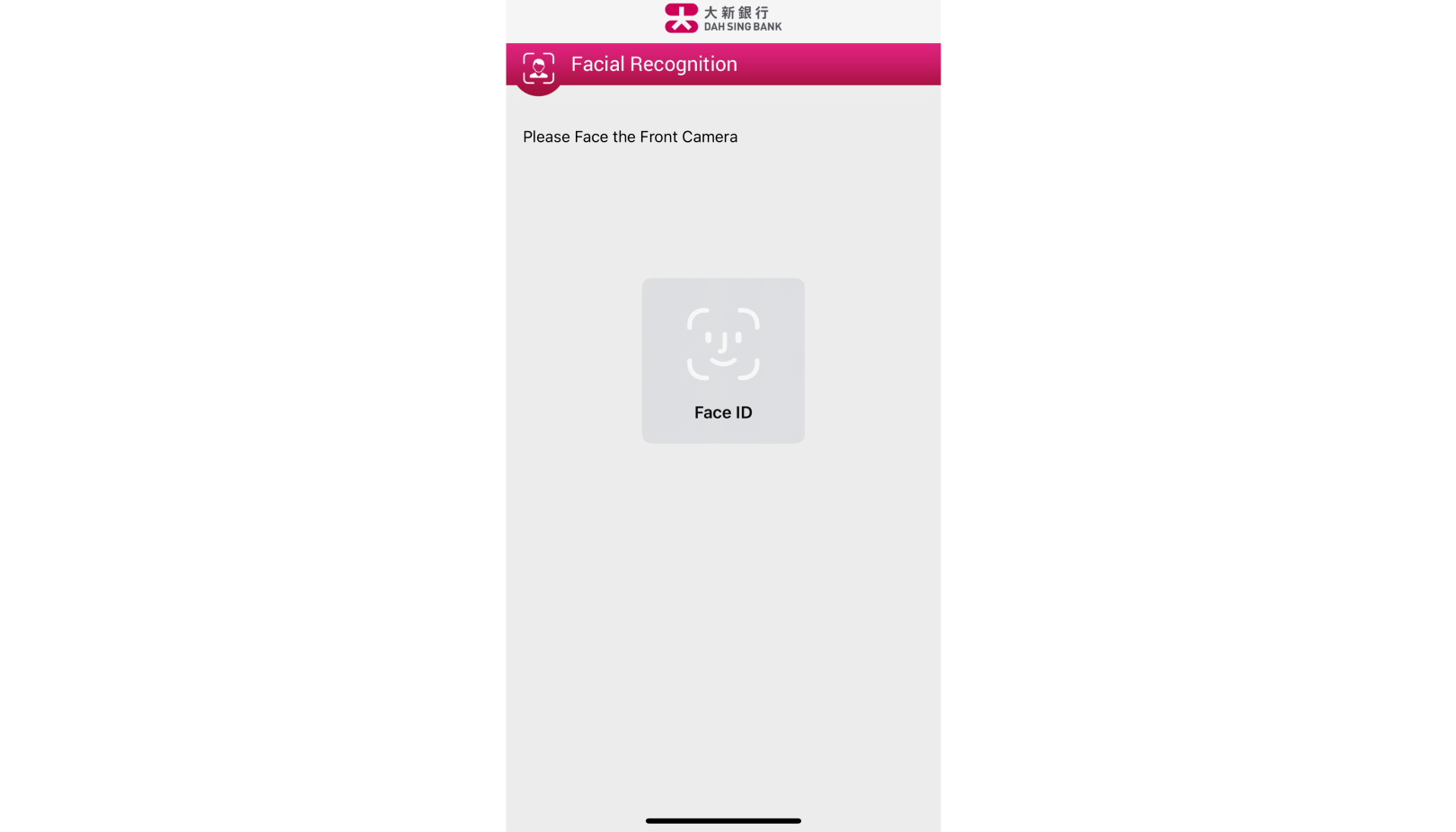
If you have enabled Fingerprint Authentication, please touch the fingerprint sensor on your mobile phone to verify your fingerprint registered on your device and approve the instruction; If you have enabled Face ID Authentication or Facial Recognition, please look at your device camera to verify your Face ID or facial map to approve the instruction.
Transaction Approval (via Security Authentication)
If you have enabled Fingerprint Authentication, please touch the fingerprint sensor on your mobile phone to verify your fingerprint registered on your device and approve the instruction; If you have enabled Face ID Authentication or Facial Recognition, please look at your device camera to verify your Face ID or facial map to approve the instruction.
Transaction Approval (via Security Authentication)
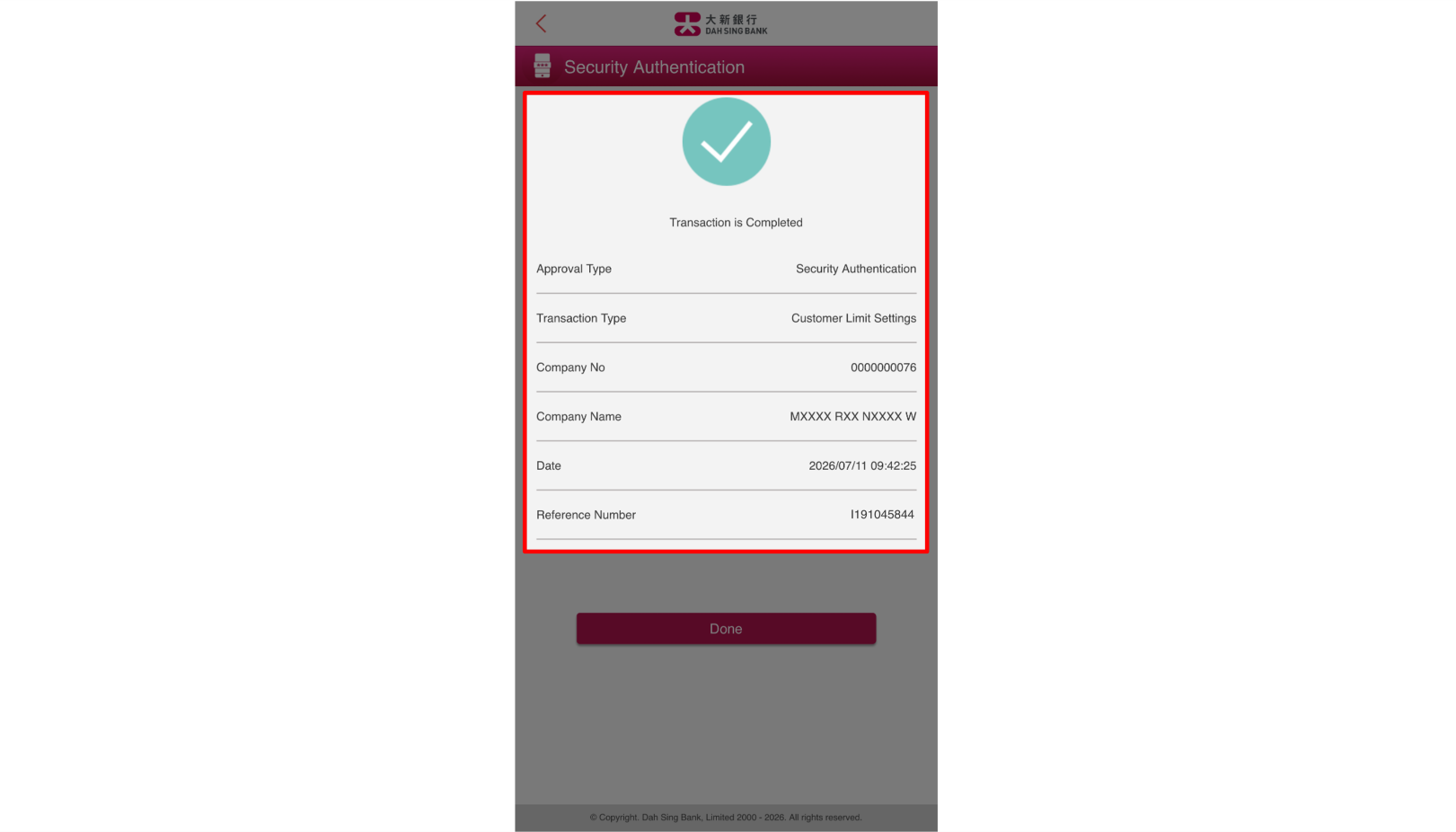
After successful authentication, you will be directed to the result page on 328 Business Mobile Banking and the corresponding 328 Business e-Banking page will be automatically refreshed.
Transaction Approval (via Security Authentication)
After successful authentication, you will be directed to the result page on 328 Business Mobile Banking and the corresponding 328 Business e-Banking page will be automatically refreshed.
Transaction Approval (via SMS OTP)
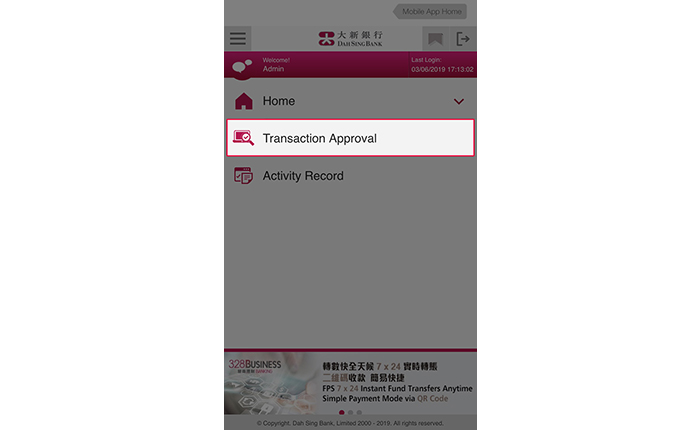
Log into 328 Business Mobile Banking and tap "Transaction Approval".
Transaction Approval (via SMS OTP)
Log into 328 Business Mobile Banking and tap "Transaction Approval".
Transaction Approval (via SMS OTP)
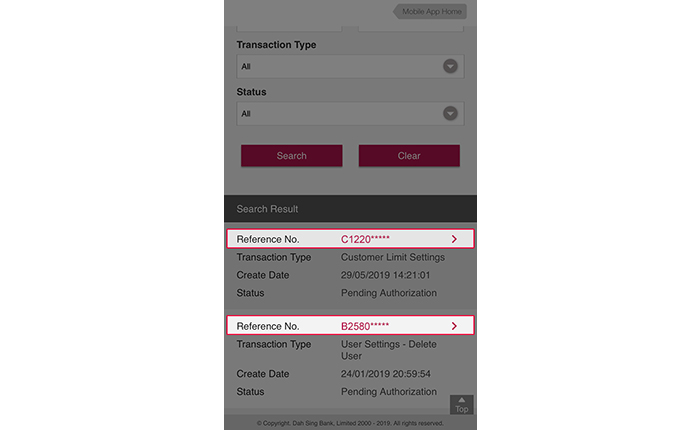
All the administrative instructions that are pending for approval are displayed in "Transaction Approval". You can search by Reference number, Transaction Type, Creation Date and Status. After search results are displayed, you can tap the corresponding "Reference No." to view the details for individual transaction.
Transaction Approval (via SMS OTP)
All the administrative instructions that are pending for approval are displayed in "Transaction Approval". You can search by Reference number, Transaction Type, Creation Date and Status. After search results are displayed, you can tap the corresponding "Reference No." to view the details for individual transaction.
Transaction Approval (via SMS OTP)
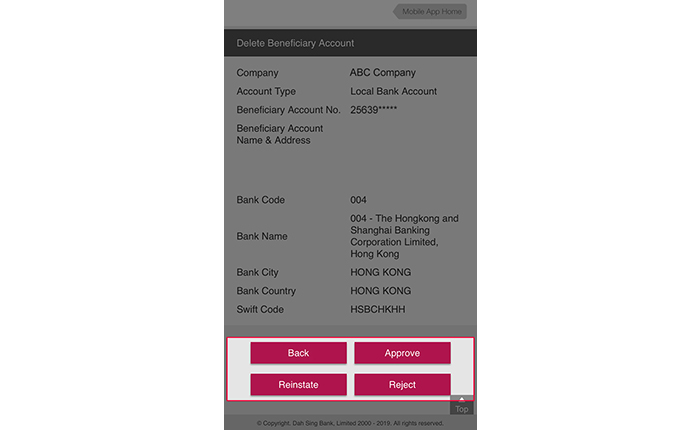
You can "Approve", "Reinstate" or "Reject" the transaction.
Transaction Approval (via SMS OTP)
You can "Approve", "Reinstate" or "Reject" the transaction.
Transaction Approval (via SMS OTP)
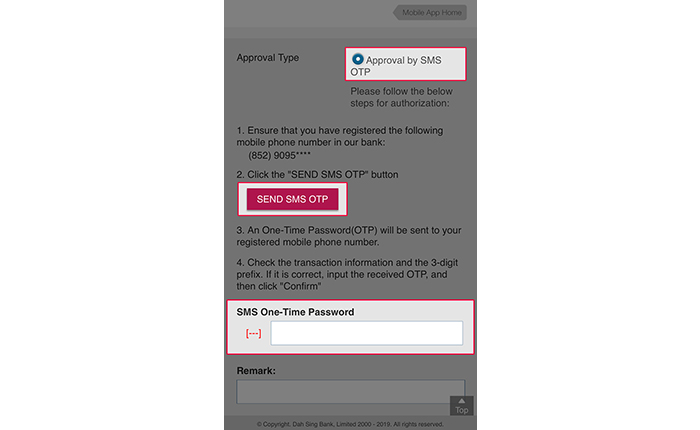
Verify transaction details and tap "Approval by SMS OTP" for approval type selection. Tap "SEND SMS OTP" and enter the SMS OTP received on mobile phone number registered with us and tap "Confirm".
Transaction Approval (via SMS OTP)
Verify transaction details and tap "Approval by SMS OTP" for approval type selection. Tap "SEND SMS OTP" and enter the SMS OTP received on mobile phone number registered with us and tap "Confirm".
Transaction Approval (via SMS OTP)
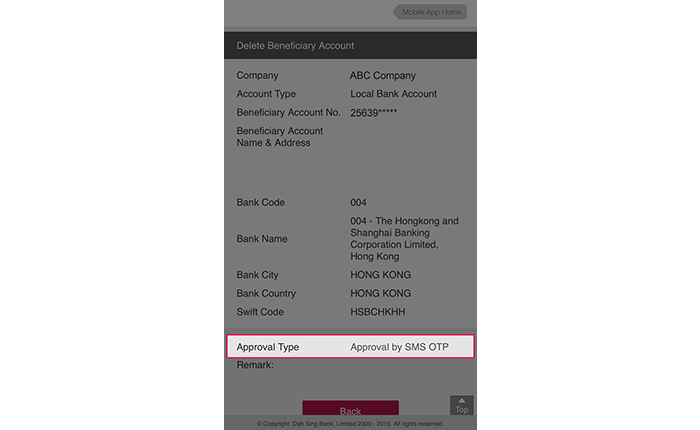
After approval via SMS OTP, the transaction instruction will be processed.
Transaction Approval (via SMS OTP)
After approval via SMS OTP, the transaction instruction will be processed.
For 328 Business e-Banking Demo, please click here.